Getting Started
Everything you need to run your first campaign
BacklinkTitan is a Windows-only desktop application that automates backlink building across 1,000+ platforms. Your campaigns, accounts and browser sessions are stored locally on your own PC, and there is no extra cloud subscription for BacklinkTitan itself.
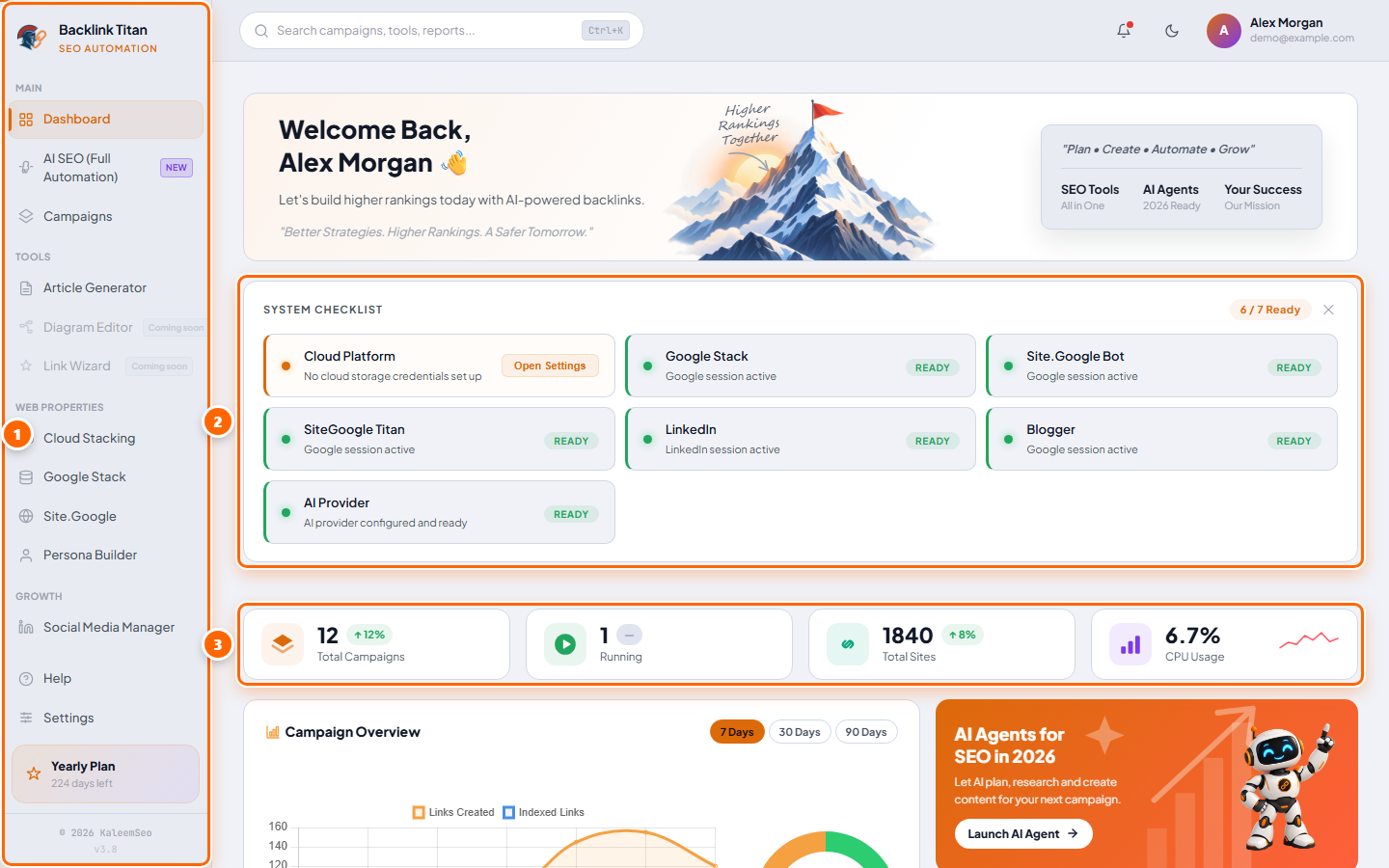
System Requirements
| Requirement | Detail |
|---|---|
| OS | Windows 10 or Windows 11 (64-bit only) |
| RAM | 8 GB minimum, 16 GB recommended when running AI features |
| Storage | About 1 GB free for the app and everything it needs (about 2.5 GB in total if you also install Local AI) |
| Internet | Required to install, to activate your license and during campaigns. Cloud AI models and API providers also need it. Proxies are optional but recommended for high-volume runs. |
1. Buy a license and download the Setup file, then install BacklinkTitan with the Setup wizard.
2. Log in or activate your license.
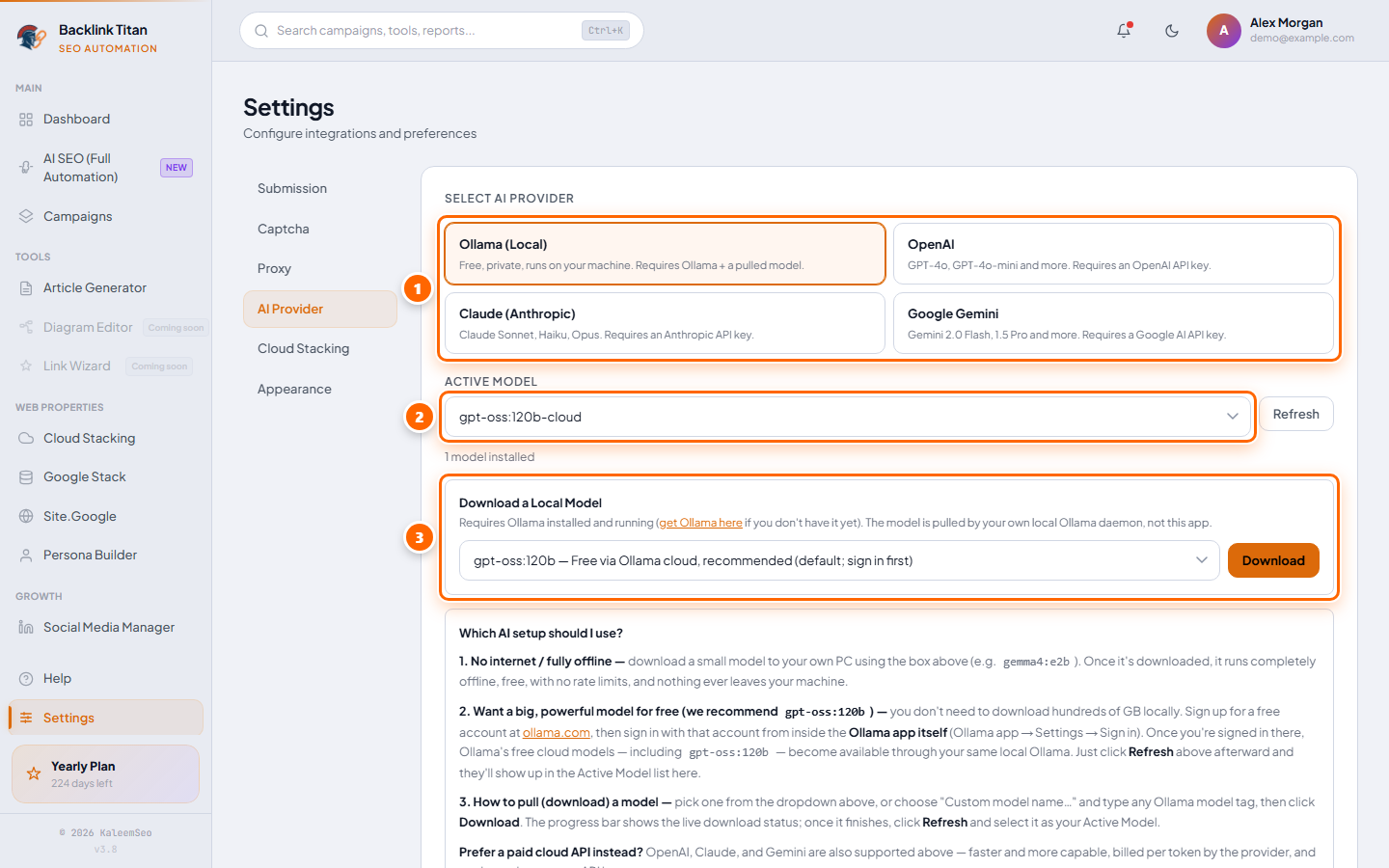
3. Choose your AI under Settings → AI Provider.
4. Open AI SEO (Full Automation), add your link and a keyword, and press Add & Run. AI does the rest.
Buying & Downloading
From choosing a plan to having the Setup file on your PC
BacklinkTitan is sold from backlinktitan.net. You create an account, pay for a plan, receive your license key, and then download the Setup file from your customer dashboard. The Setup file is only available to customers with an active license.
Plans
| Plan | Price (launch offer) | Good to know |
|---|---|---|
| Monthly | $20 per month | Renew manually each month. Email support. |
| Yearly | $150 per year (about $12.50/month) | Best value for most users. Priority support. |
| Lifetime | $200 one-time | Pay once, no renewals. All future updates and priority support included. |
Every plan includes every feature — there are no link caps, credit limits or per-campaign fees. Prices shown are the current launch offer and can change, so always check the Pricing page. There is no free trial; review the features and this manual before you buy.
Buying your license
After you buy
| Question | Answer |
|---|---|
| How many PCs can I use? | One Windows PC at a time per license. To move to a new PC, open a support ticket with your license key and the old machine is deactivated for free so you can activate the new one. |
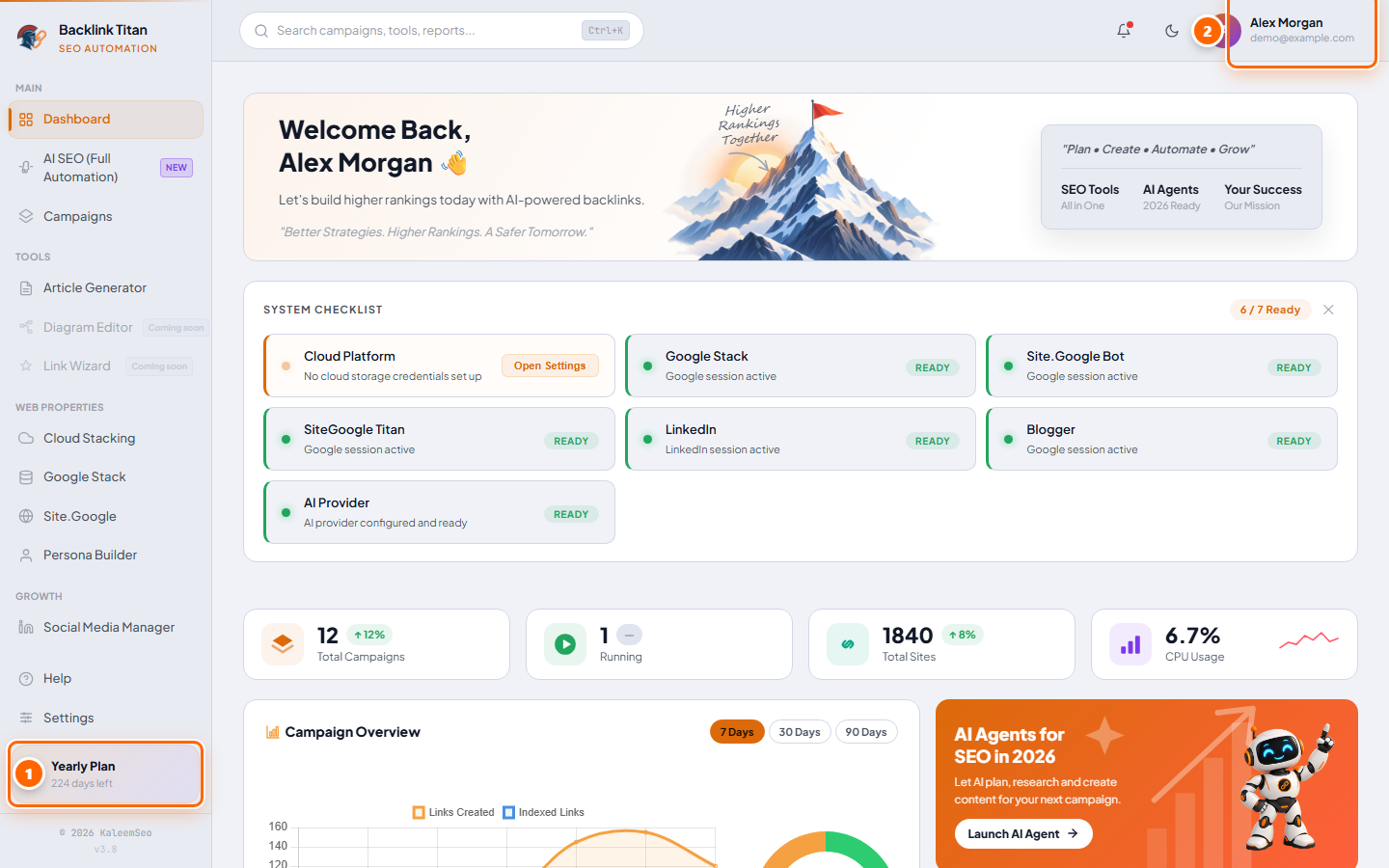
| What happens when a plan expires? | The app stops working until you renew. Nothing is deleted — your campaigns, accounts and settings stay on your PC and carry on after you renew from Buy / Renew. |
| Can I upgrade later? | Yes. Contact support with your license key — the remaining value of your current plan is applied as a discount toward Yearly or Lifetime. |
| Payment not showing up? | Open a support ticket from the dashboard (or email contact@backlinktitan.net) with your transaction ID or hash and your account email. |
Installation
Set up BacklinkTitan in under 10 minutes
[OK].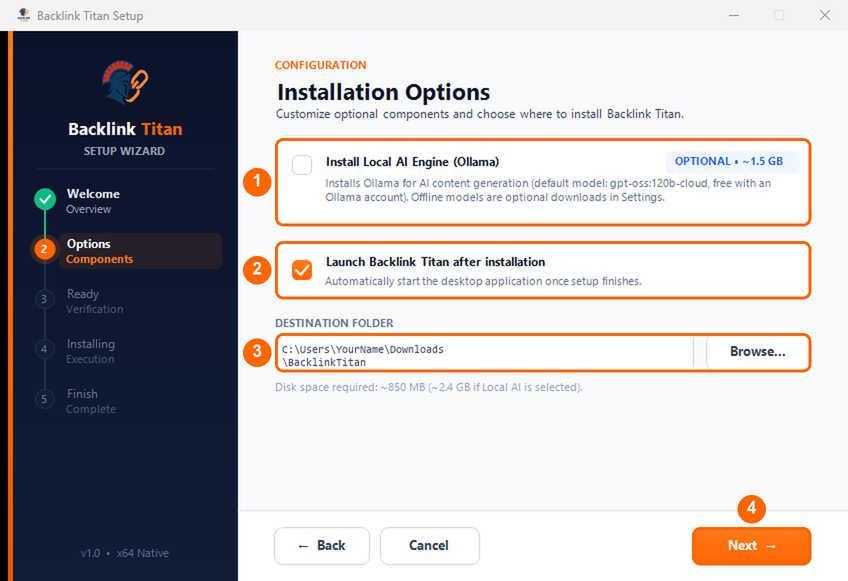
C:\BacklinkTitan, and not moving or deleting it afterwards. Your campaigns, license and browser sessions are kept in a hidden folder at %APPDATA%\BacklinkTitan, so they stay safe even if you reinstall.System requirements before you install
- Windows 10 or 11, 64-bit, with an internet connection during setup.
- Microsoft Edge WebView2 Runtime — most PCs already have it; Setup tells you if it is missing.
- About 1 GB free disk space (about 2.5 GB if you also install Local AI), 8 GB RAM recommended.
- Administrator rights on the PC, because Setup installs what BacklinkTitan needs.
Updating to a new version
When a new version is released, download the newest Setup file from Downloads in your dashboard and run it into the same folder. Your campaigns, license and settings live in %APPDATA%\BacklinkTitan, so they are kept. Close BacklinkTitan before running Setup.
Bot fixes need no download. When a single bot breaks because a website changed, the fix is delivered automatically while BacklinkTitan is open — see Settings → Bot Updates. You only need to download Setup again for a new version of the app itself.
Moving to a new PC
Install BacklinkTitan on the new PC, then open a support ticket with your license key so the old PC is deactivated, and log in or activate on the new one. Copy the %APPDATA%\BacklinkTitan folder across if you want your campaigns and settings to come with you.
Uninstalling
Close BacklinkTitan, then run Uninstall.exe from the folder you installed it in. Your data folder is separate and can be kept or deleted by hand.
License Activation
One-time setup, tied to your machine
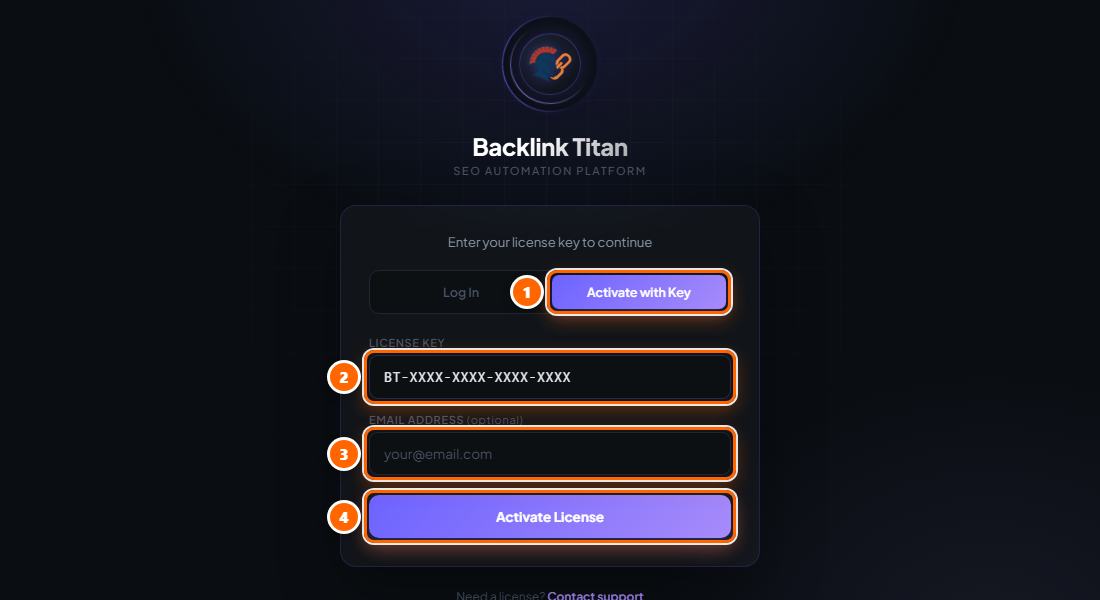
Your license is tied to one Windows machine at a time. Activation is automatic — the app contacts the license server when you sign in and your license is validated instantly. You can sign in either with your account (email and password) or with your license key.
BT-.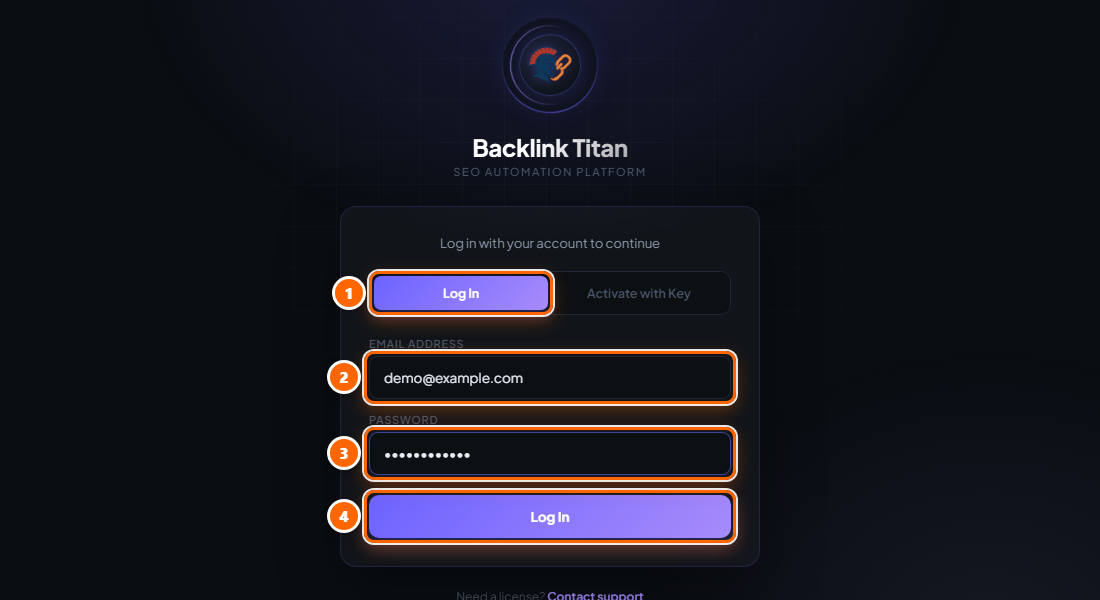
Profile Backlinks
Register accounts on 100+ sites with your URL in the bio
Profile backlinks are created by registering an account on a social, community, or business profile site and filling the "website" or "bio" field with your money-site URL. BacklinkTitan automates this across 100+ platforms using its built-in browser bots.
Creating a Profile Campaign
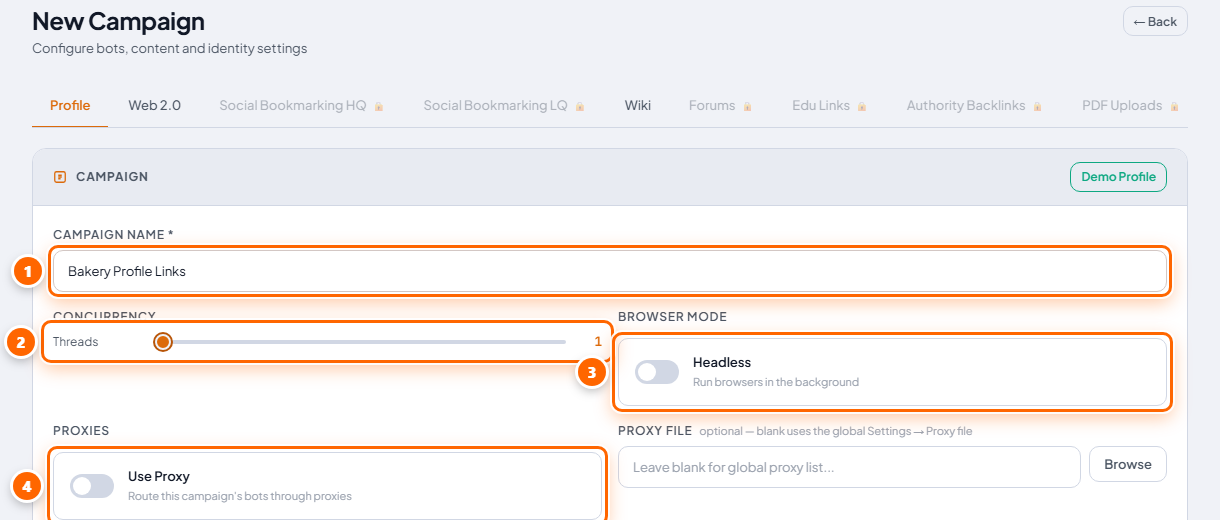
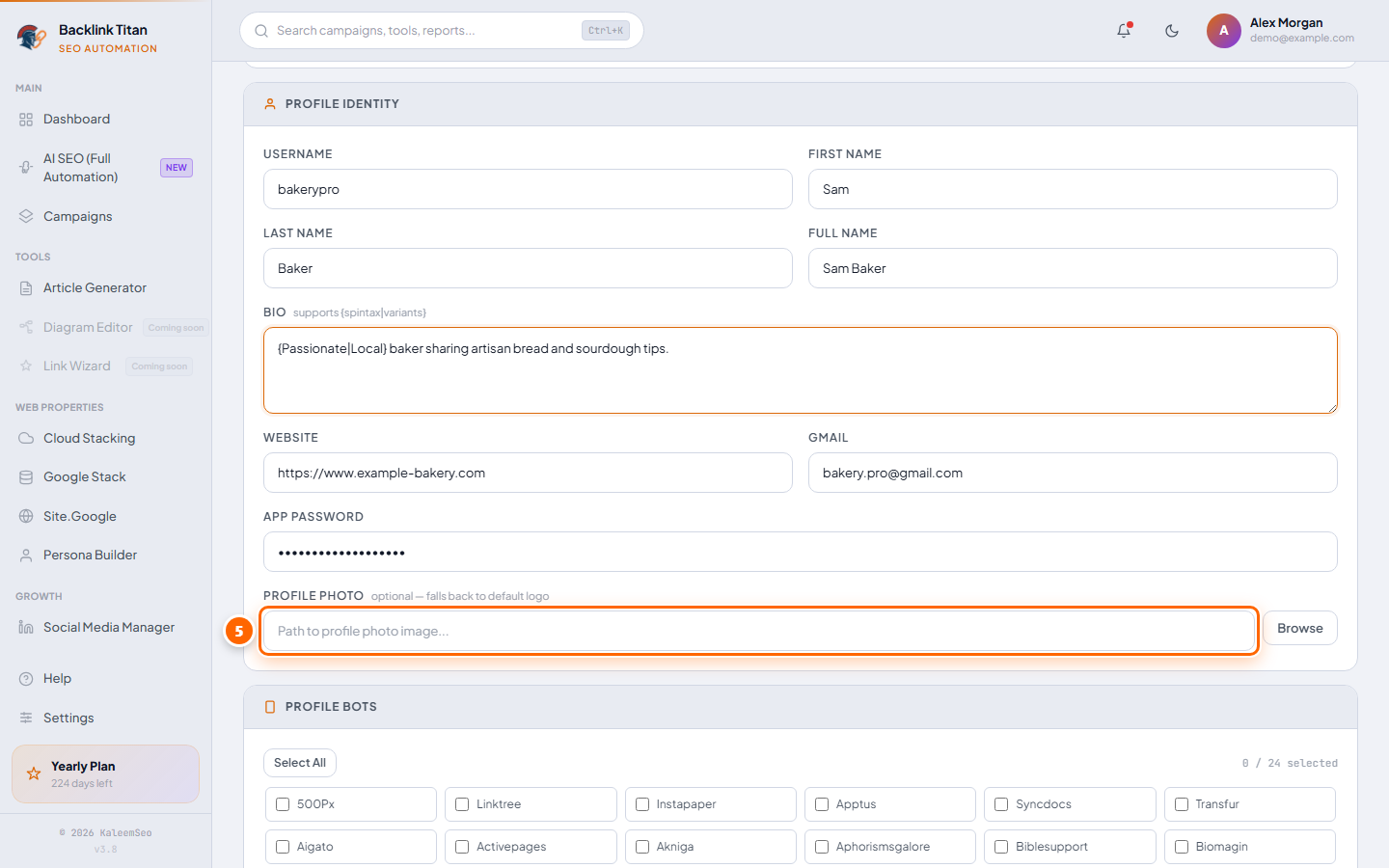
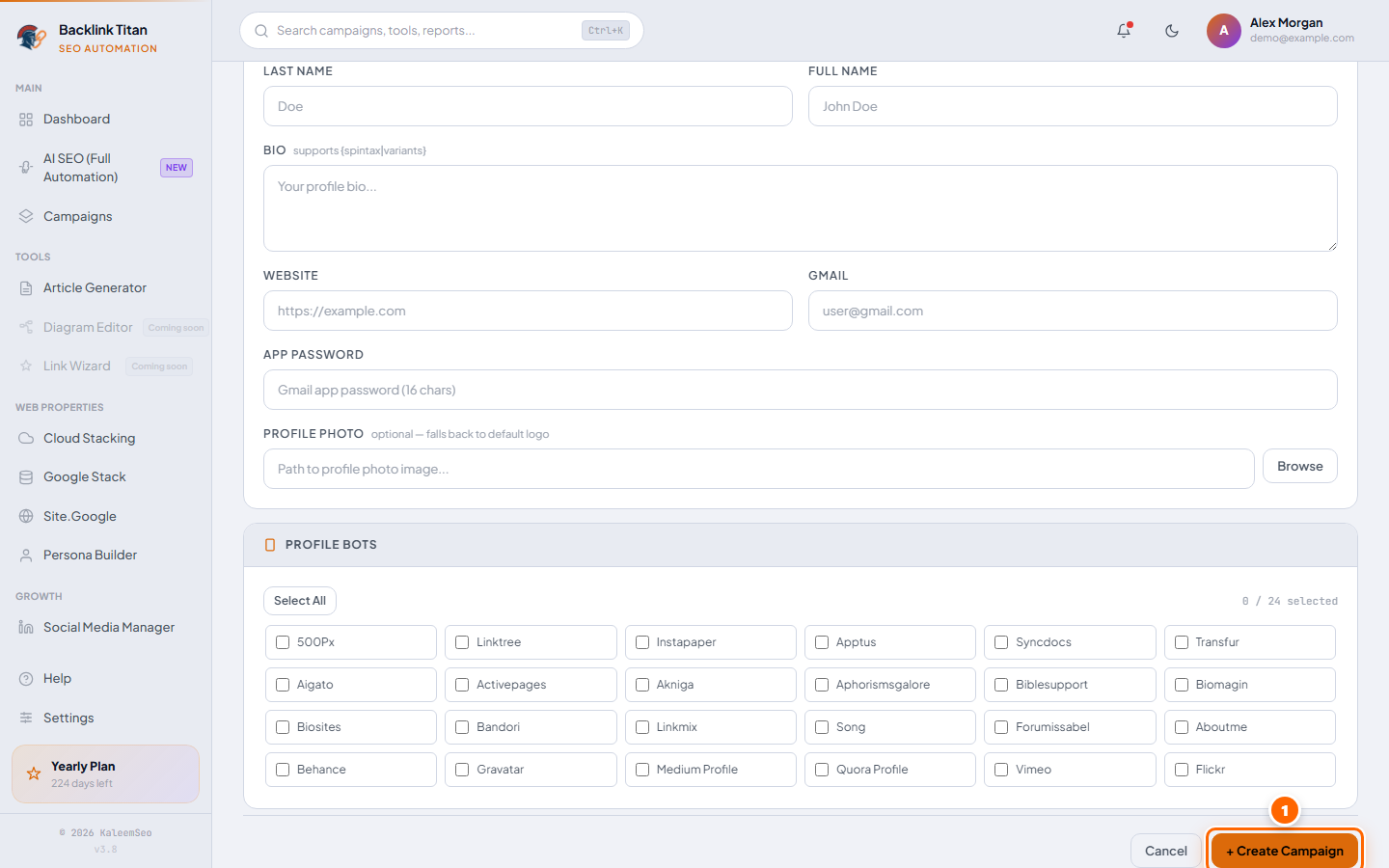
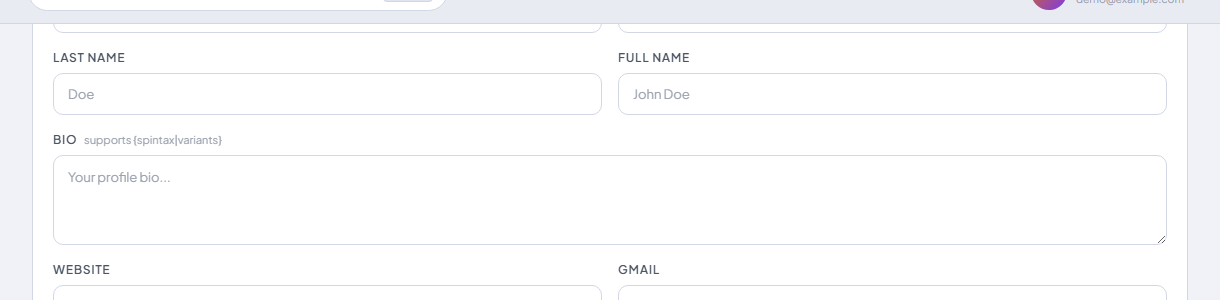
{SEO expert|Digital marketer}), Target Website URL, Gmail address, and Gmail App Password. A Gmail app password is required — regular passwords will not work. You can generate one at myaccount.google.com → Security → App passwords.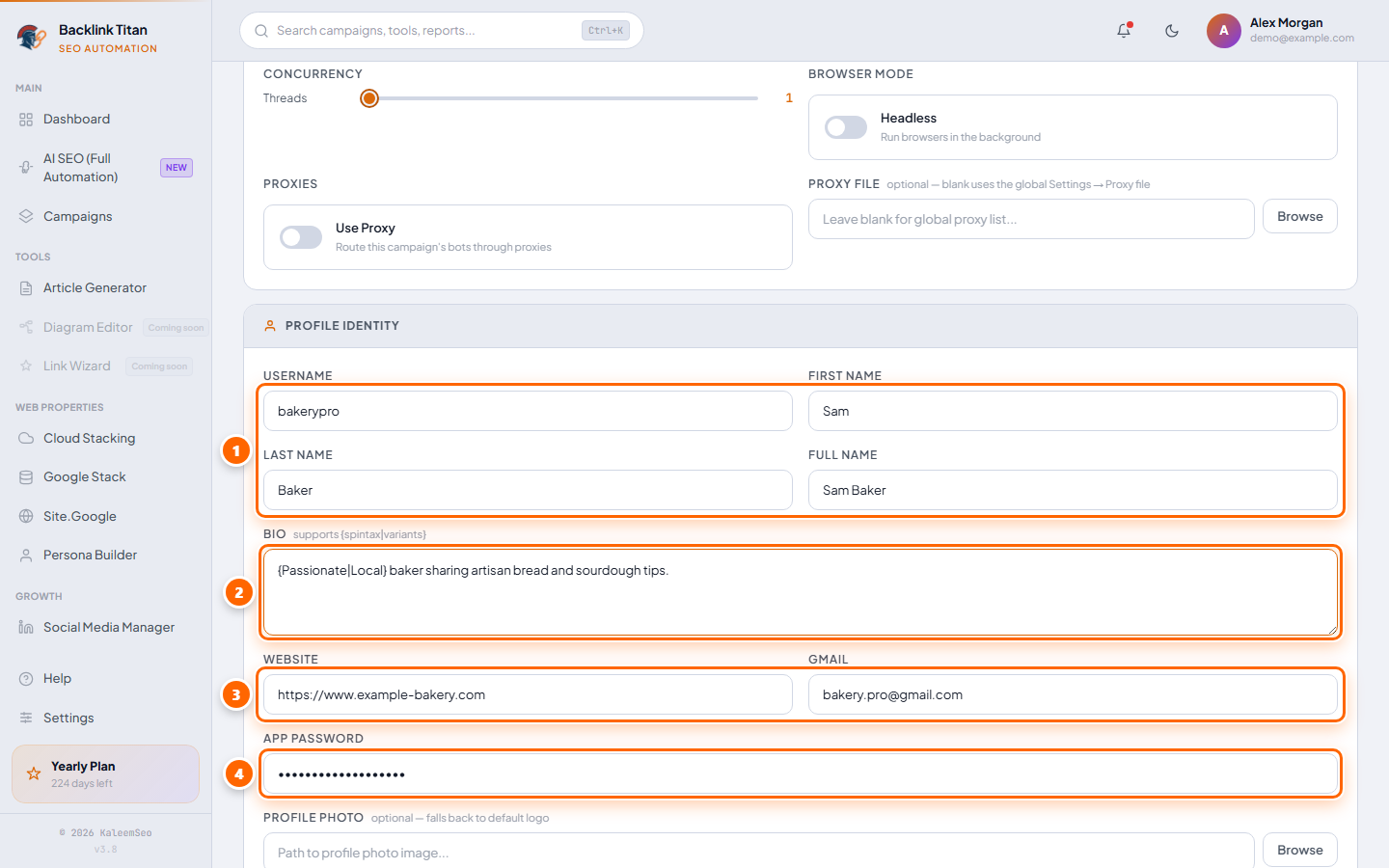
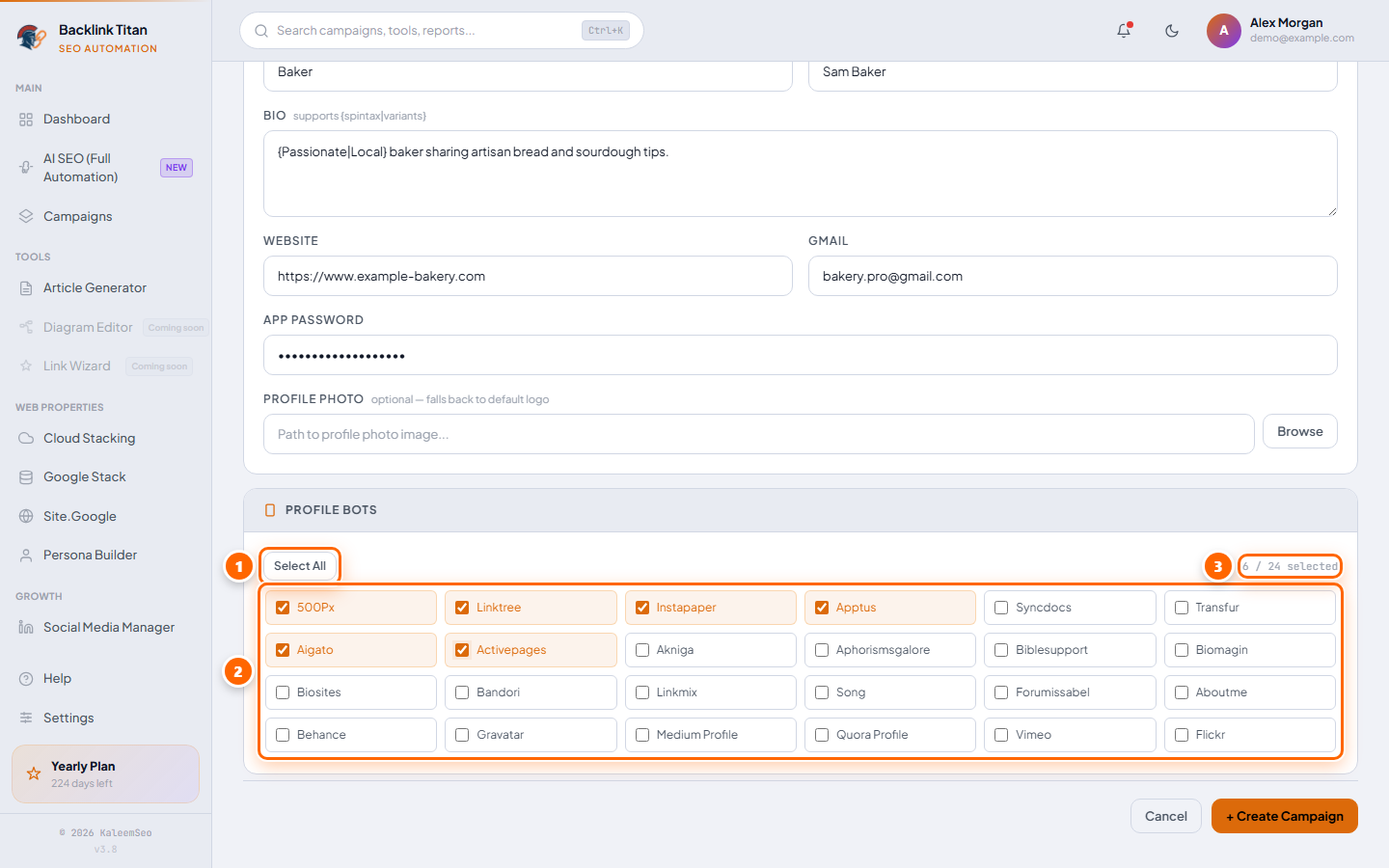
Bot Tiers
| Tier | Description |
|---|---|
| 💎 Premium | Highest-DA social and professional profile sites (LinkedIn, GitHub, etc.) |
| ⭐ Standard | Mid-tier community and niche profile sites |
| Tier 2 | High-volume, lower-DA profile directories |
| 🧵 Nabble | 48 Nabble-powered forum communities — requires email confirmation via Gmail IMAP |
{I am an|Working as a} {digital marketer|SEO professional} at {targetsite.com|my website}.Web 2.0 Backlinks
Publish articles on blogging platforms with your URL embedded
Web 2.0 bots publish full articles on blogging platforms (Blogger, WordPress, LinkedIn articles, and many more) with your target URL hyperlinked inside the content. These create contextual, do-follow backlinks from platforms with high domain authority.
Content Sources
When setting up a Web 2.0 campaign, choose how content is supplied:
| Mode | How it works |
|---|---|
| Manual | Paste your own article title and body. Spintax is supported. The same article (with spun variations) is posted across all selected platforms. |
| Bucket | Feed a pre-generated CSV of articles. BacklinkTitan reads them sequentially or randomly — each bot gets a different article from the bucket. |
| AI | Articles are generated on-the-fly by BacklinkTitan's built-in local AI engine. Enter a target URL, primary keyword, secondary keywords, and word count — the AI writes a unique article for each bot run. |
Running a Web 2.0 Campaign
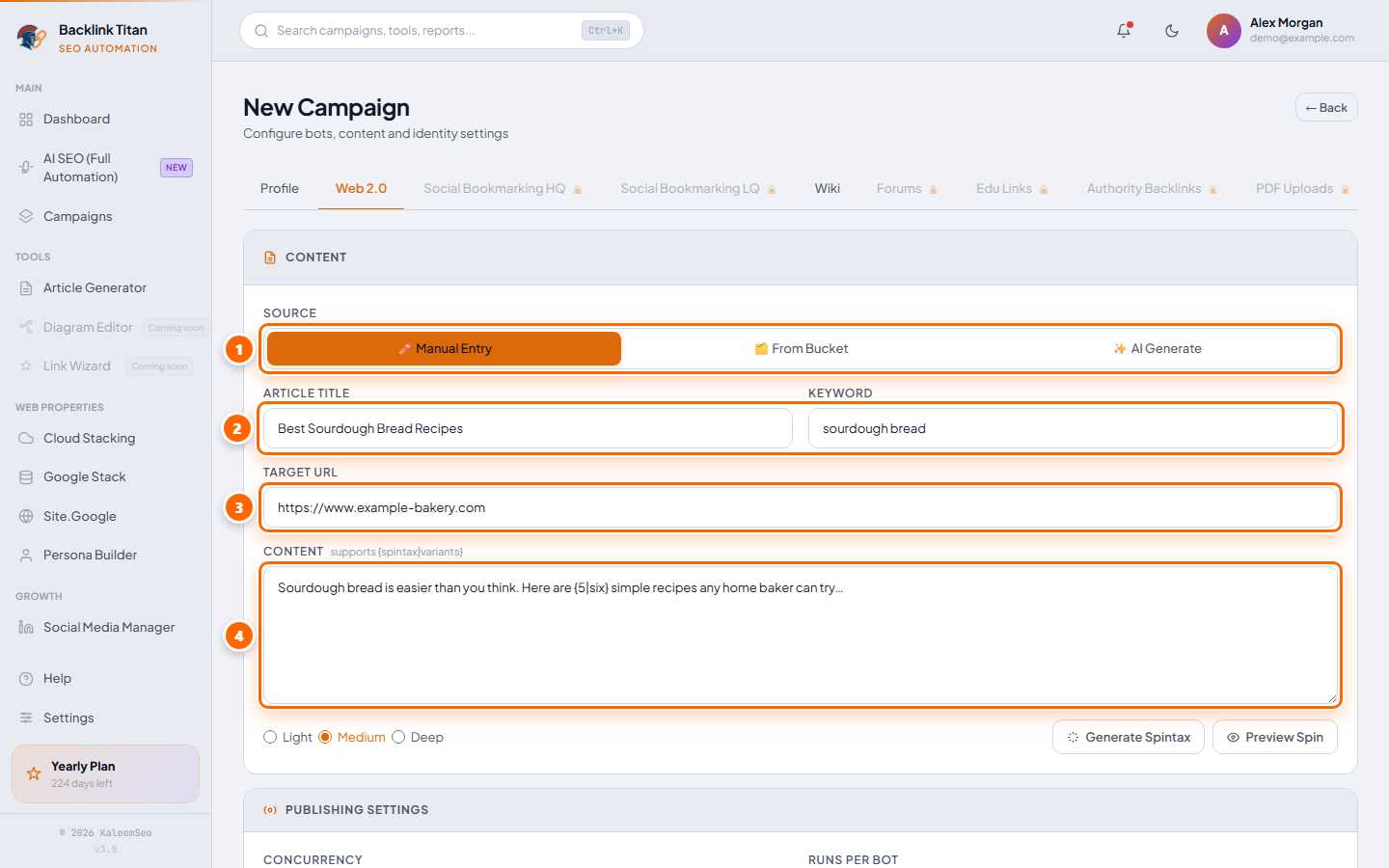
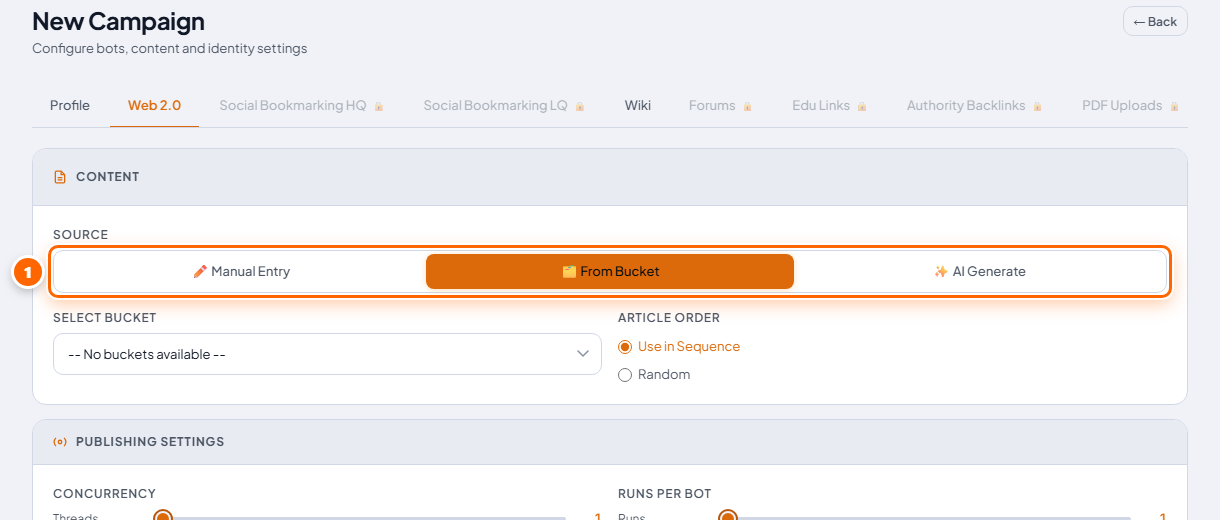
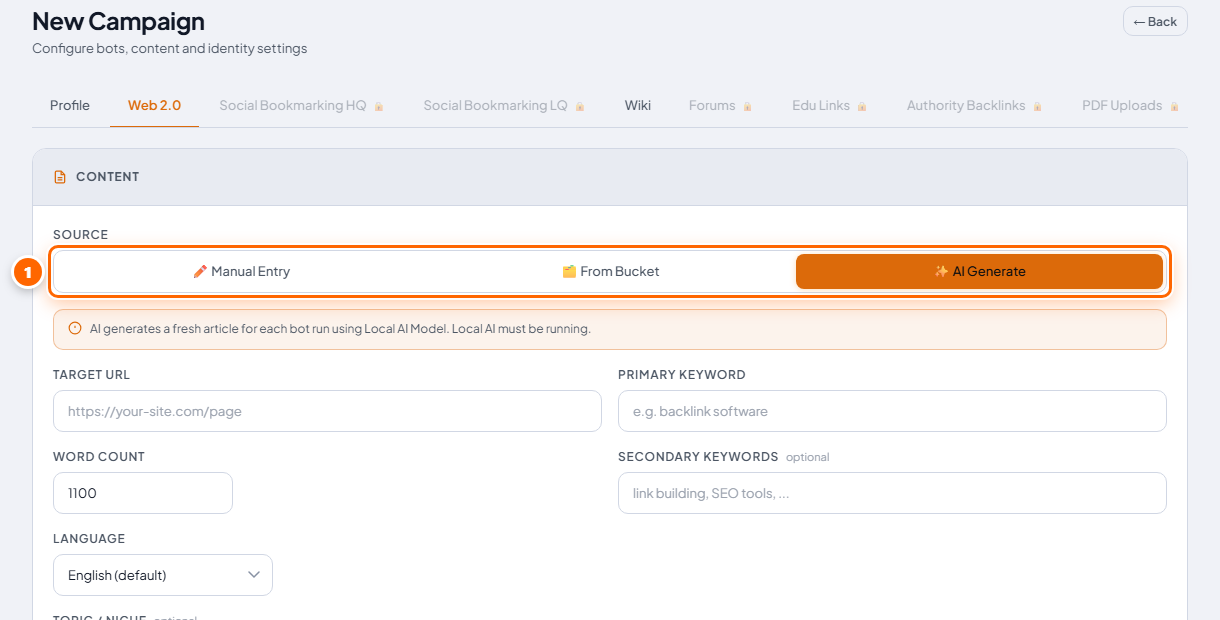
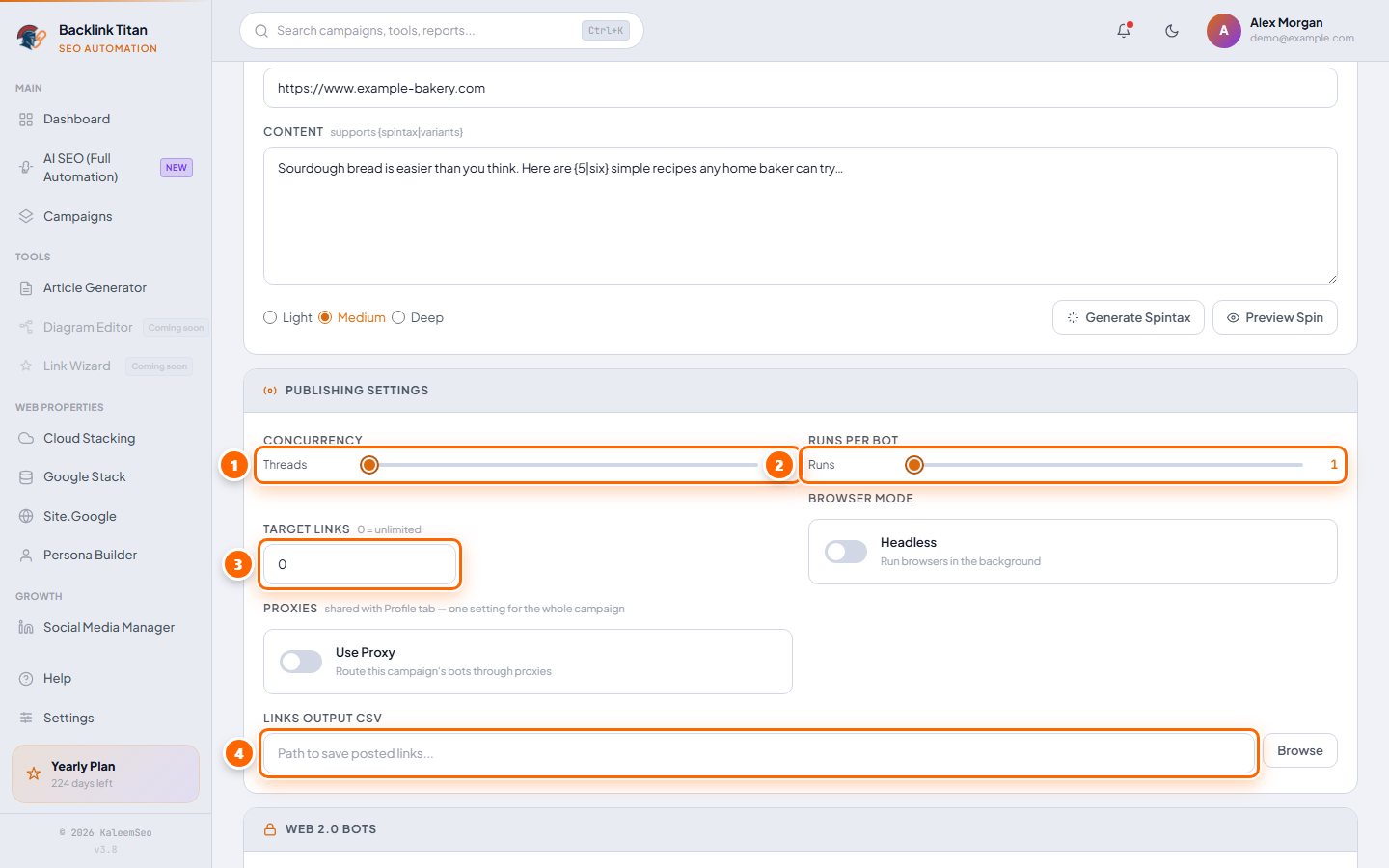
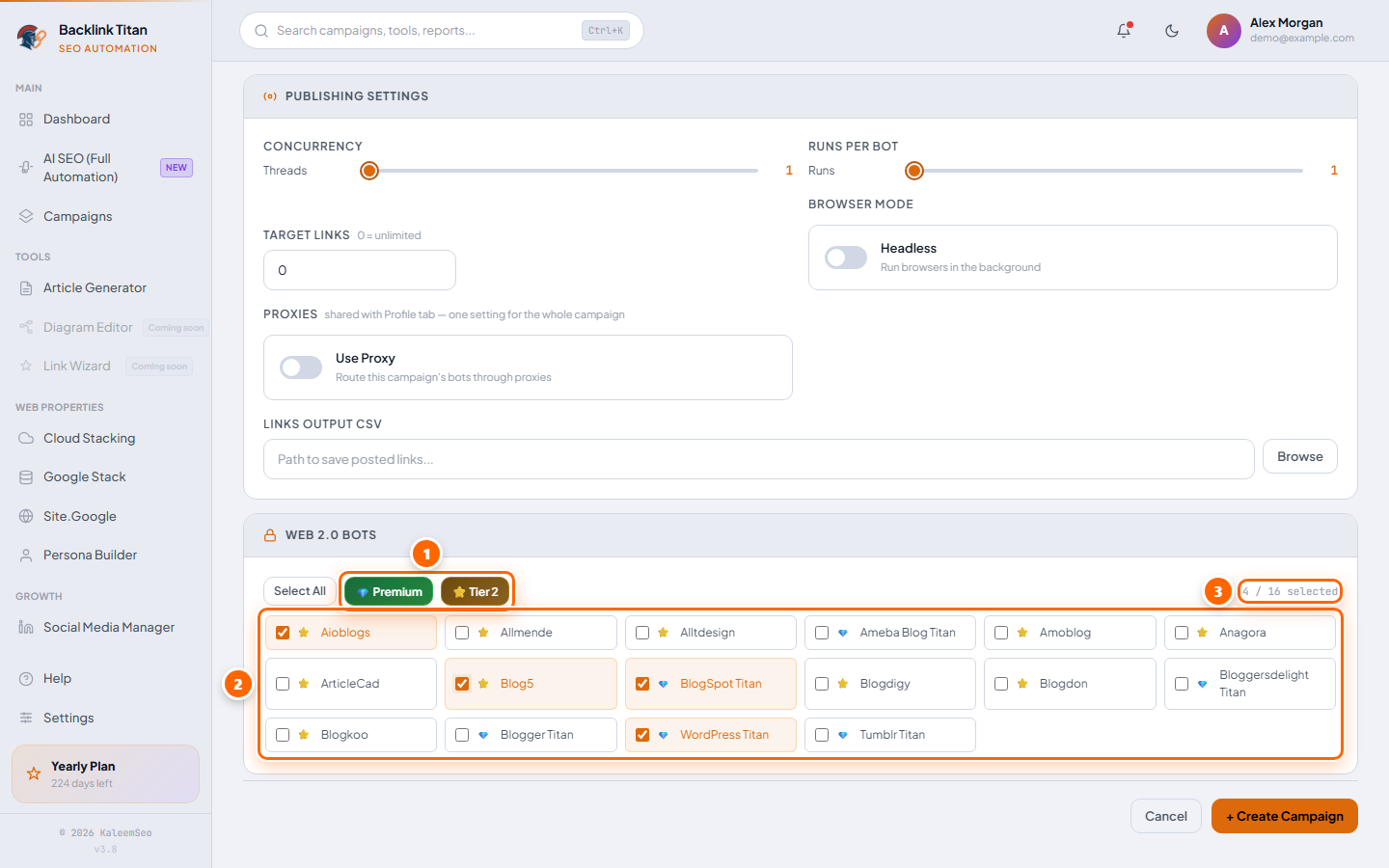
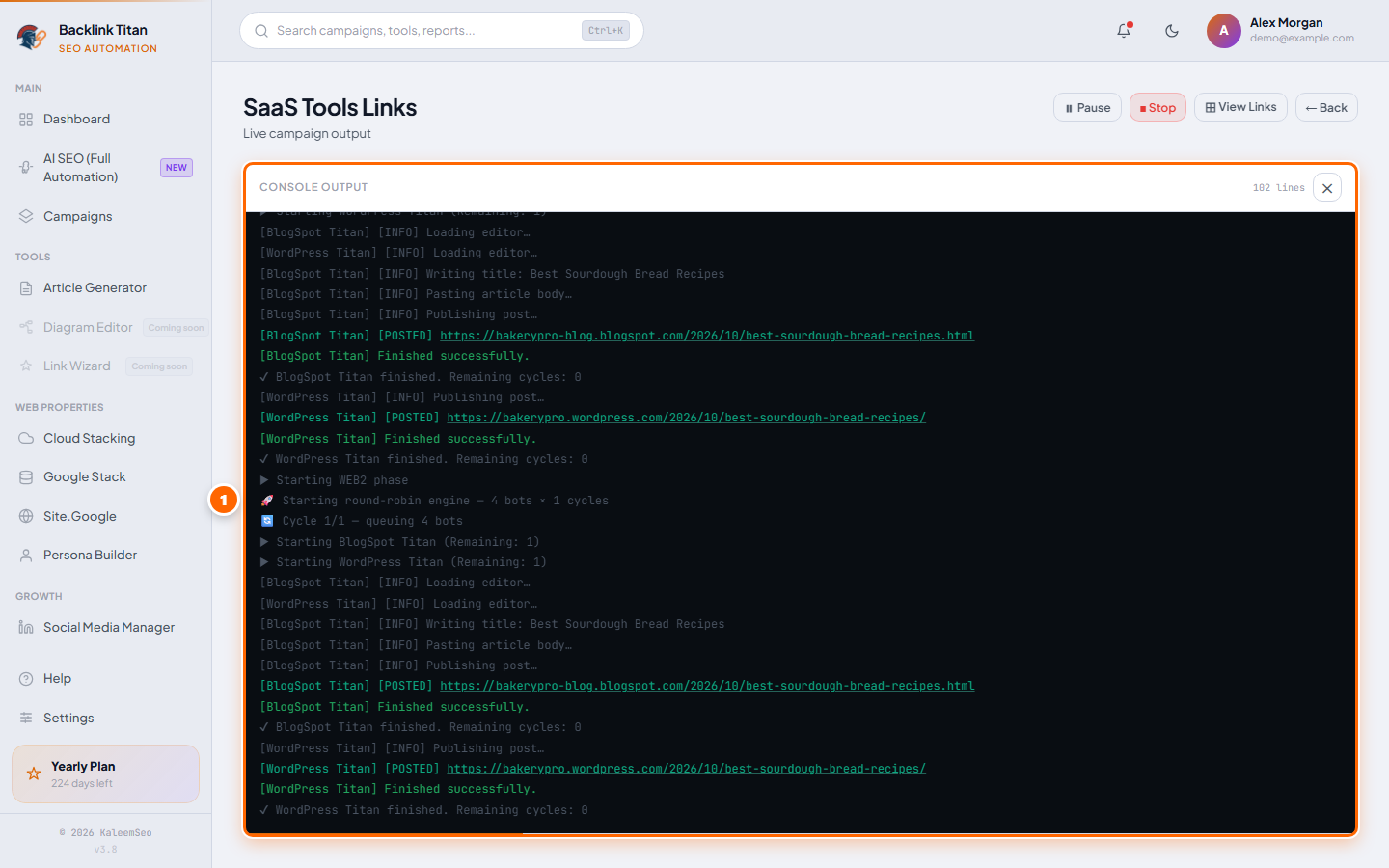
Hybrid Campaigns
Profile phase, then Web 2.0 phase, in one campaign
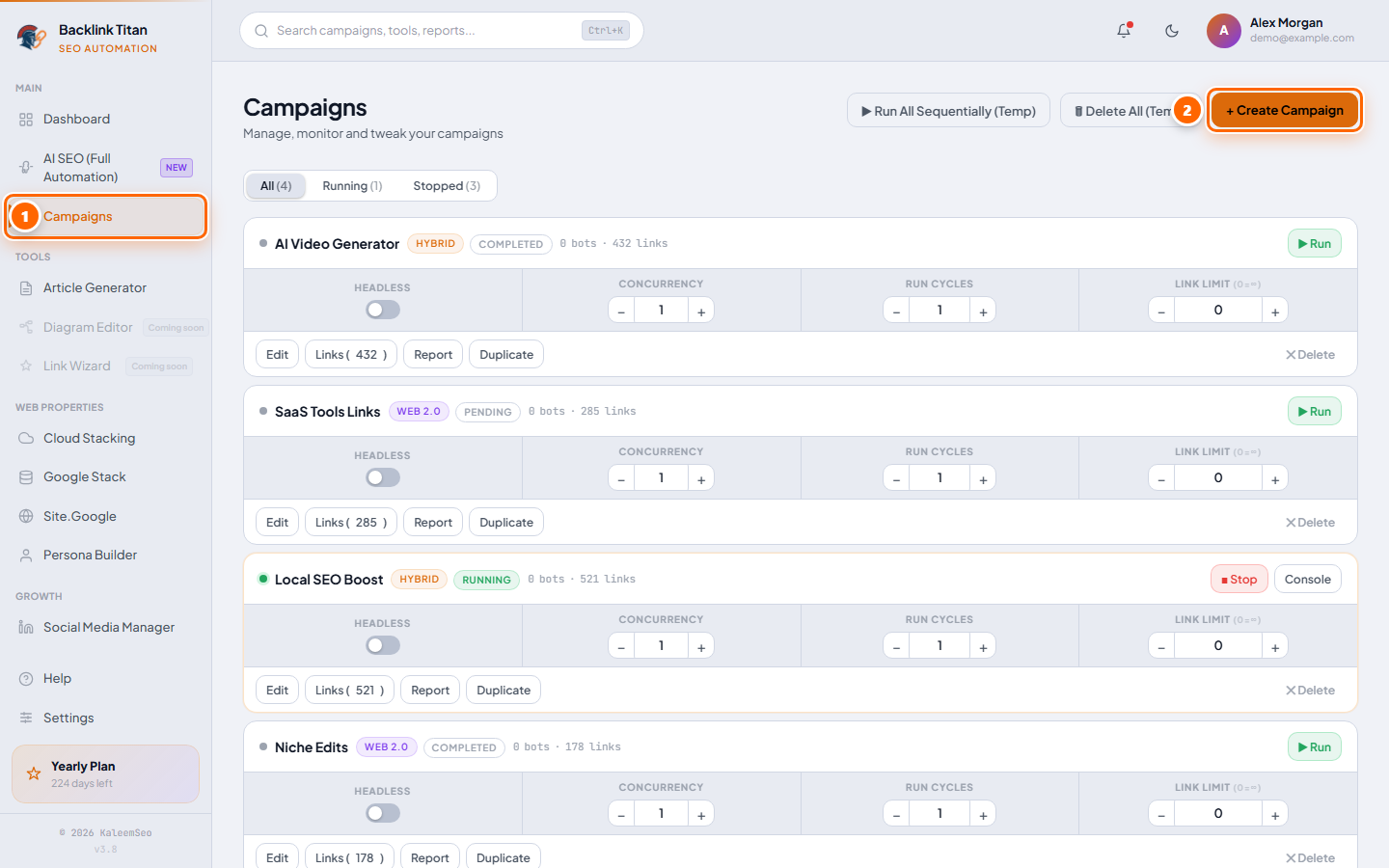
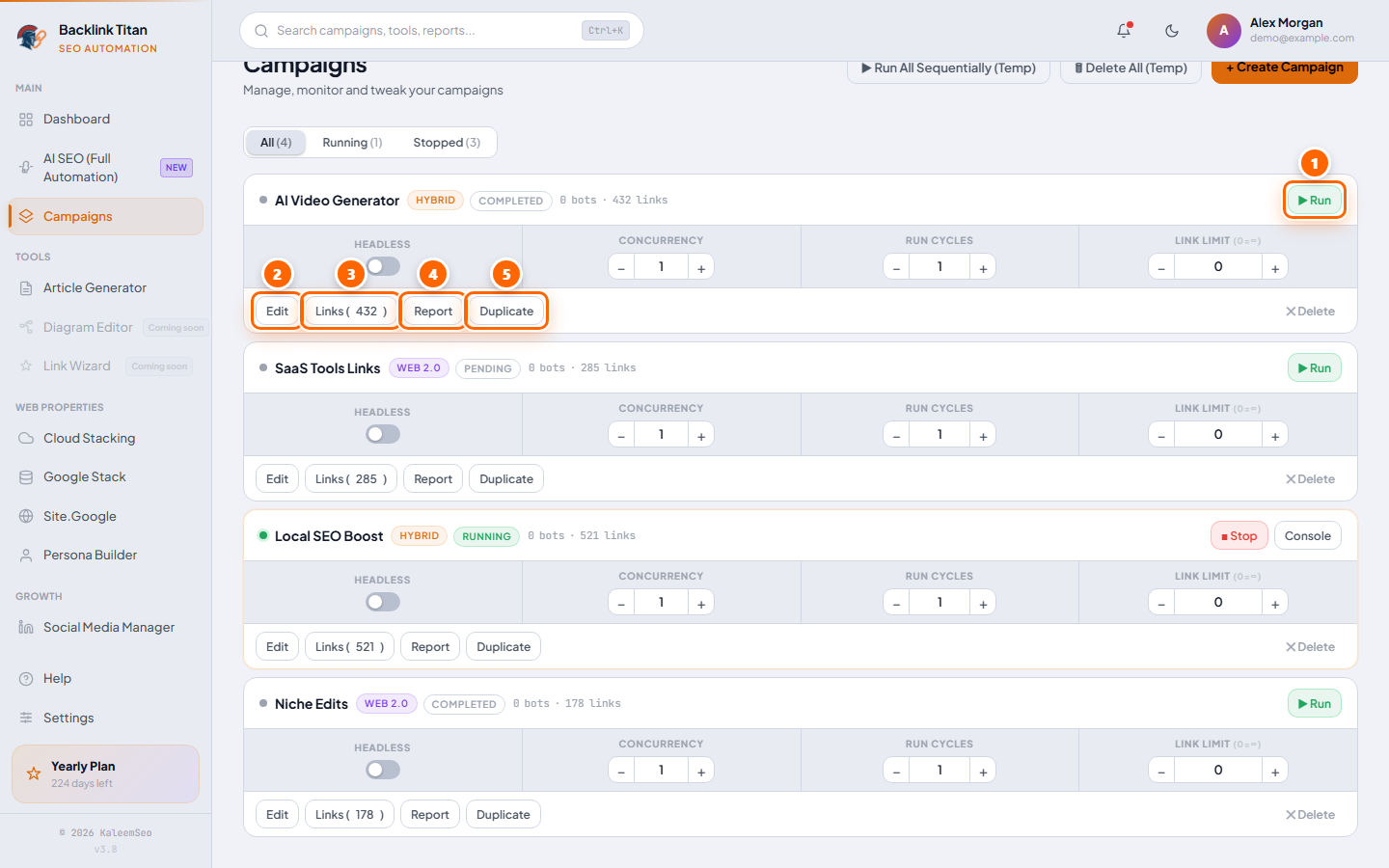
BacklinkTitan doesn't ask you to pick a campaign "type" up front. Every campaign uses the same New Campaign form with a tab for each backlink type — Profile and Web 2.0 are available today, and the other tabs are locked until they are released. Whatever you configure gets used: fill in only the Profile tab and it runs as a profile-only campaign; fill in only Web 2.0 and it runs as a web2-only campaign; fill in both and BacklinkTitan runs it as a hybrid — the Profile phase completes first, then the Web 2.0 phase starts automatically.
Why run a hybrid
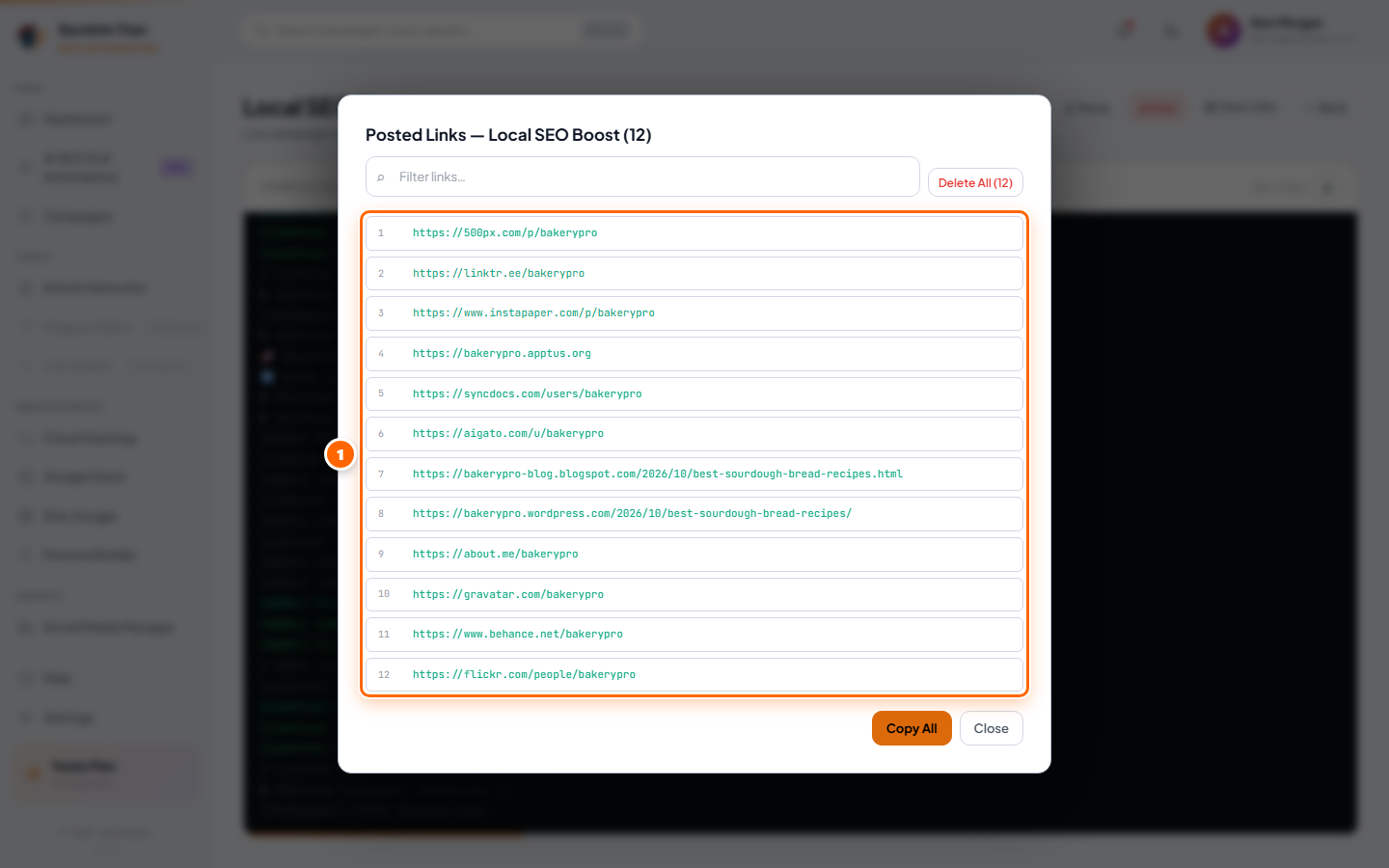
Profile backlinks build a base of registered accounts with your URL in the bio. Web 2.0 backlinks then publish full articles with your URL hyperlinked in the body. Running both from one campaign keeps everything — bots, content, output CSV, and the Report/Posted Links data — under a single campaign name instead of juggling two separate ones.
Setting one up
0 for unlimited.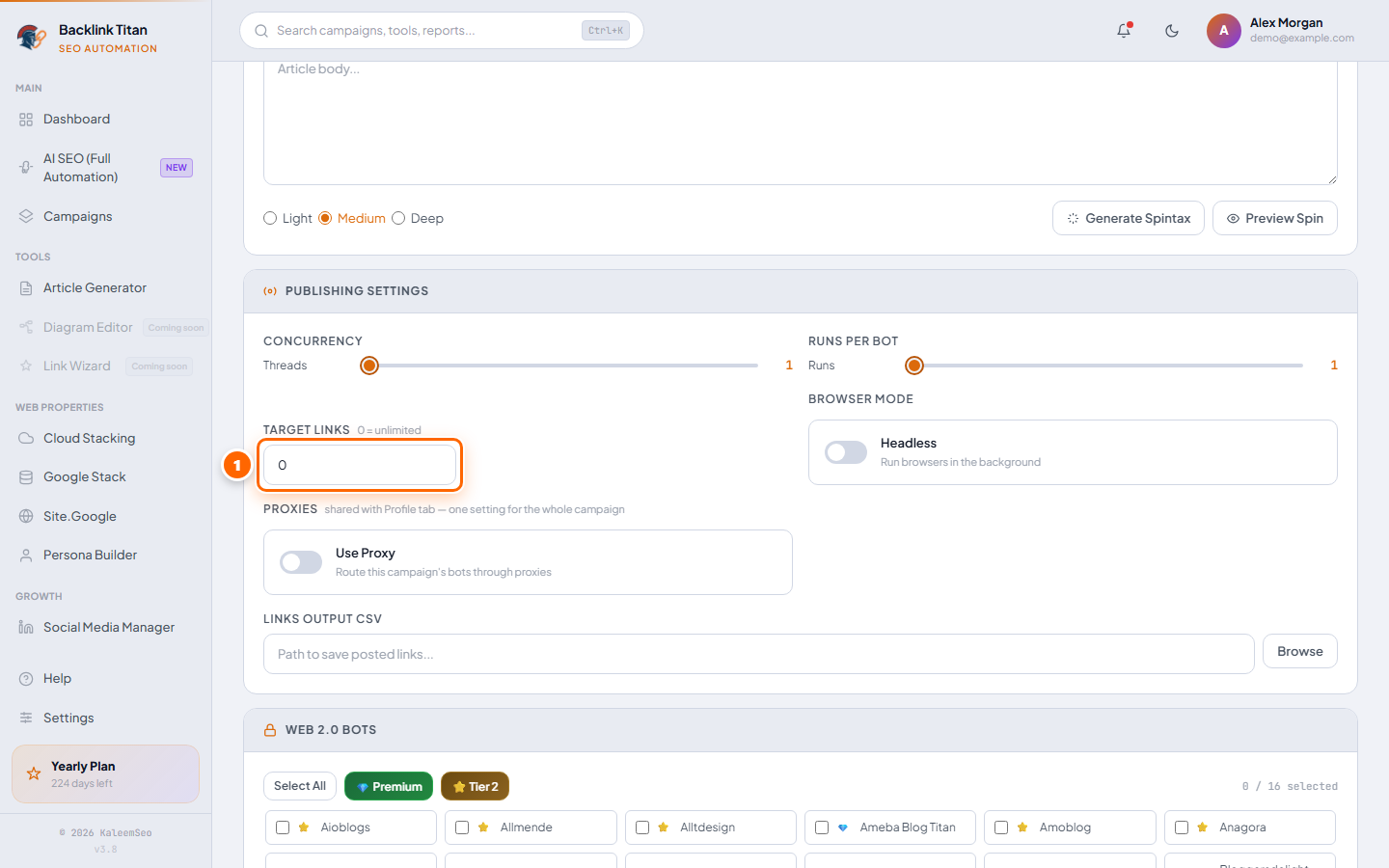
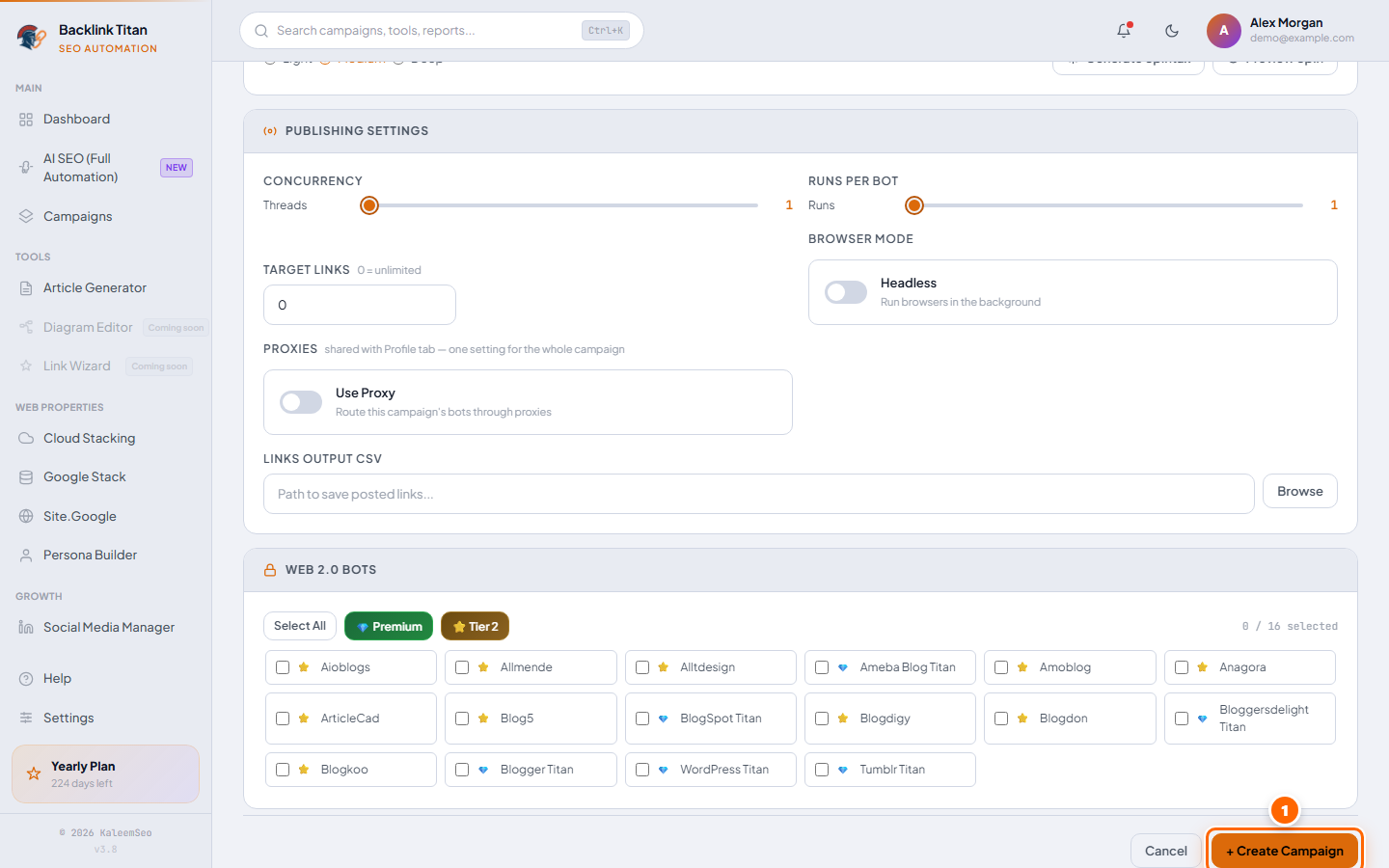
Campaign Reports
Every account a campaign created — site, username, email, password, live link
Every campaign card on the Campaigns page has a Report button. It opens the full account report for that campaign — one row per account created by its Profile Backlink bots, so you always have a complete record of what was registered where.
What's in the report
| Column | Contents |
|---|---|
| Site | The bot/platform name the account was created on |
| Username | The username used for that account, if the platform required one |
| The Gmail address used to register the account | |
| Password | The account password — masked by default, click the eye icon to reveal, click the value to copy it |
| Live Link | The profile URL created — click to open it directly |
| Created | Timestamp of when the account was registered |
Using the report
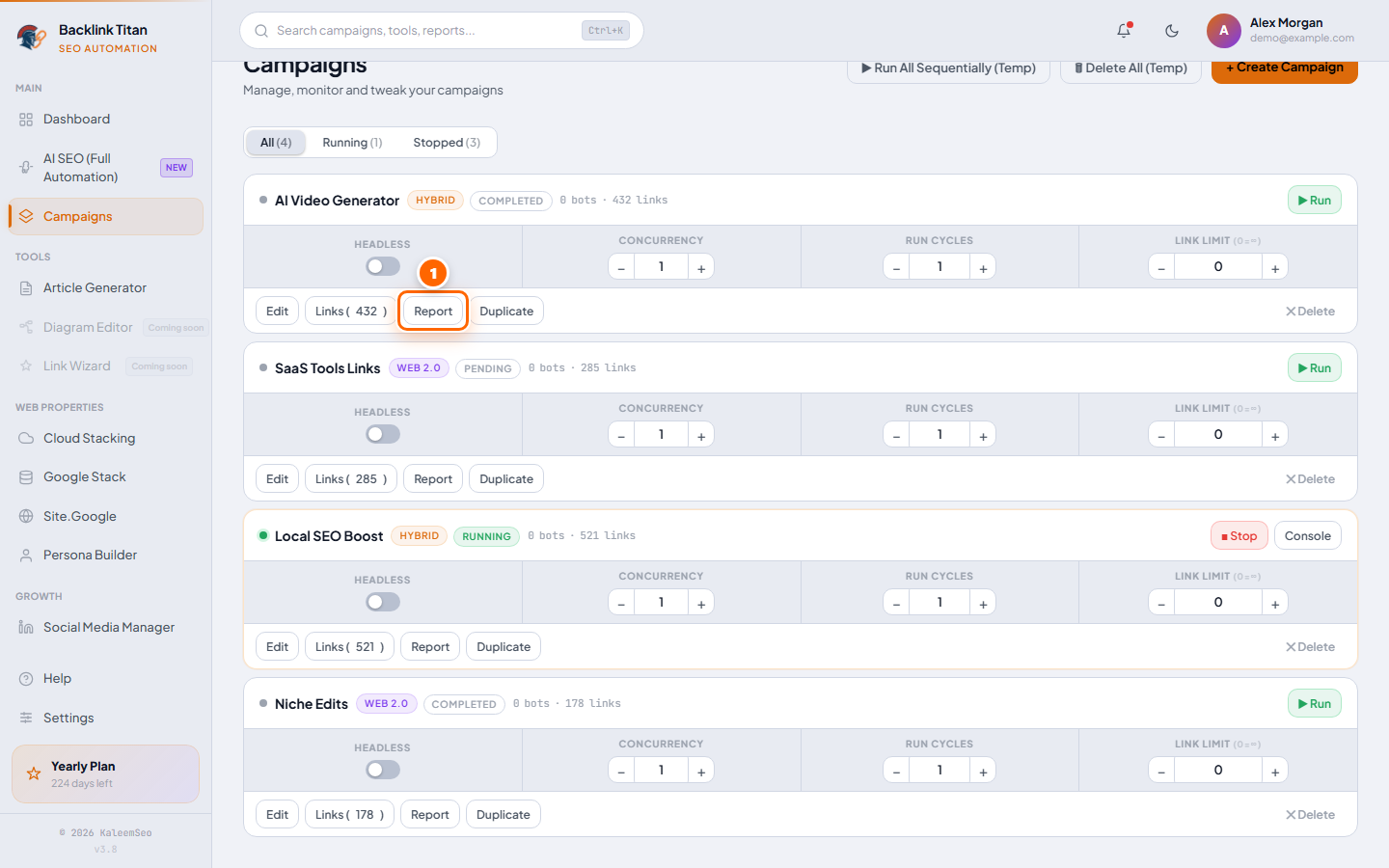
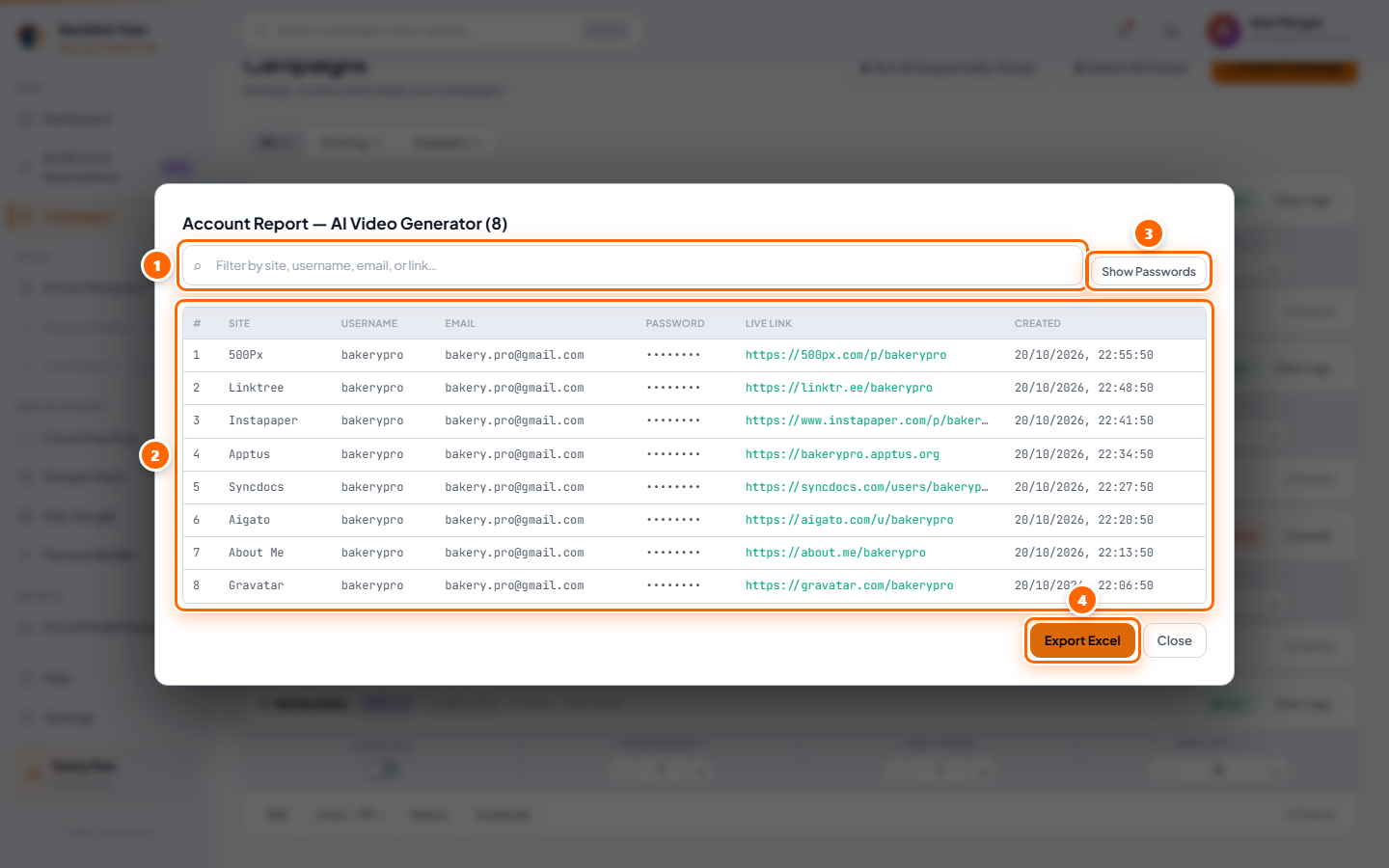
AI SEO (Full Automation)
Add a link and a keyword. AI does everything else.
AI SEO is the easiest way to build backlinks with BacklinkTitan. You give it a website or page URL and the keyword(s) you want to rank for. AI then picks the bots, writes the content, creates the accounts and starts posting for you. You don't choose bots, write articles or build a campaign by hand, and there is nothing else to set up.
Before you start
- Make sure an AI provider is ready: Settings → AI Provider (the Dashboard's System Checklist shows AI Provider — Ready).
- Stay connected to the internet.
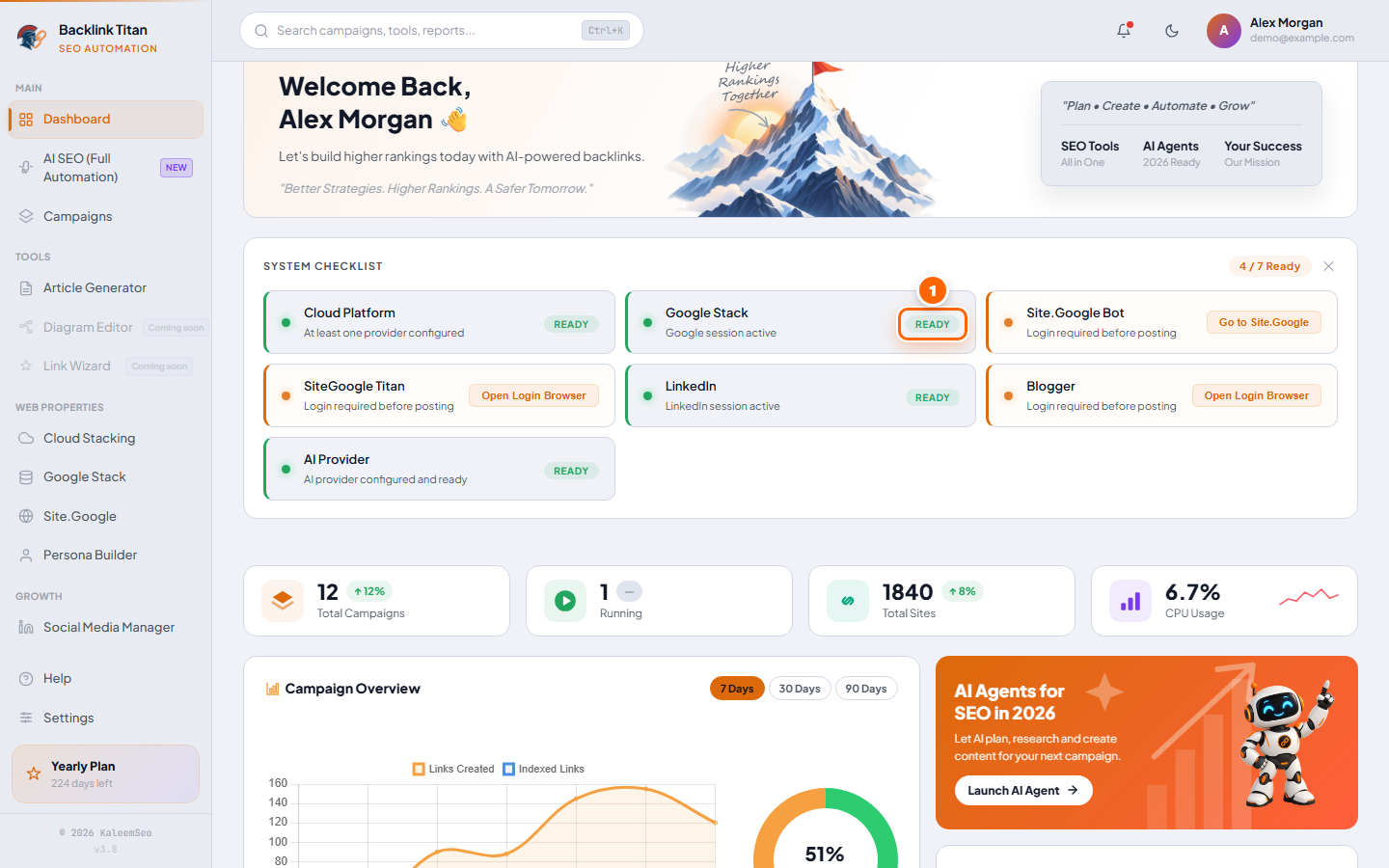
- Optional: to let AI SEO also build Google Stacking or Cloud Stacking backlinks, first sign in to Google on the Google Stack page, or add a cloud provider under Settings → Cloud Stacking. Those types unlock automatically once they are ready.
Add your first target
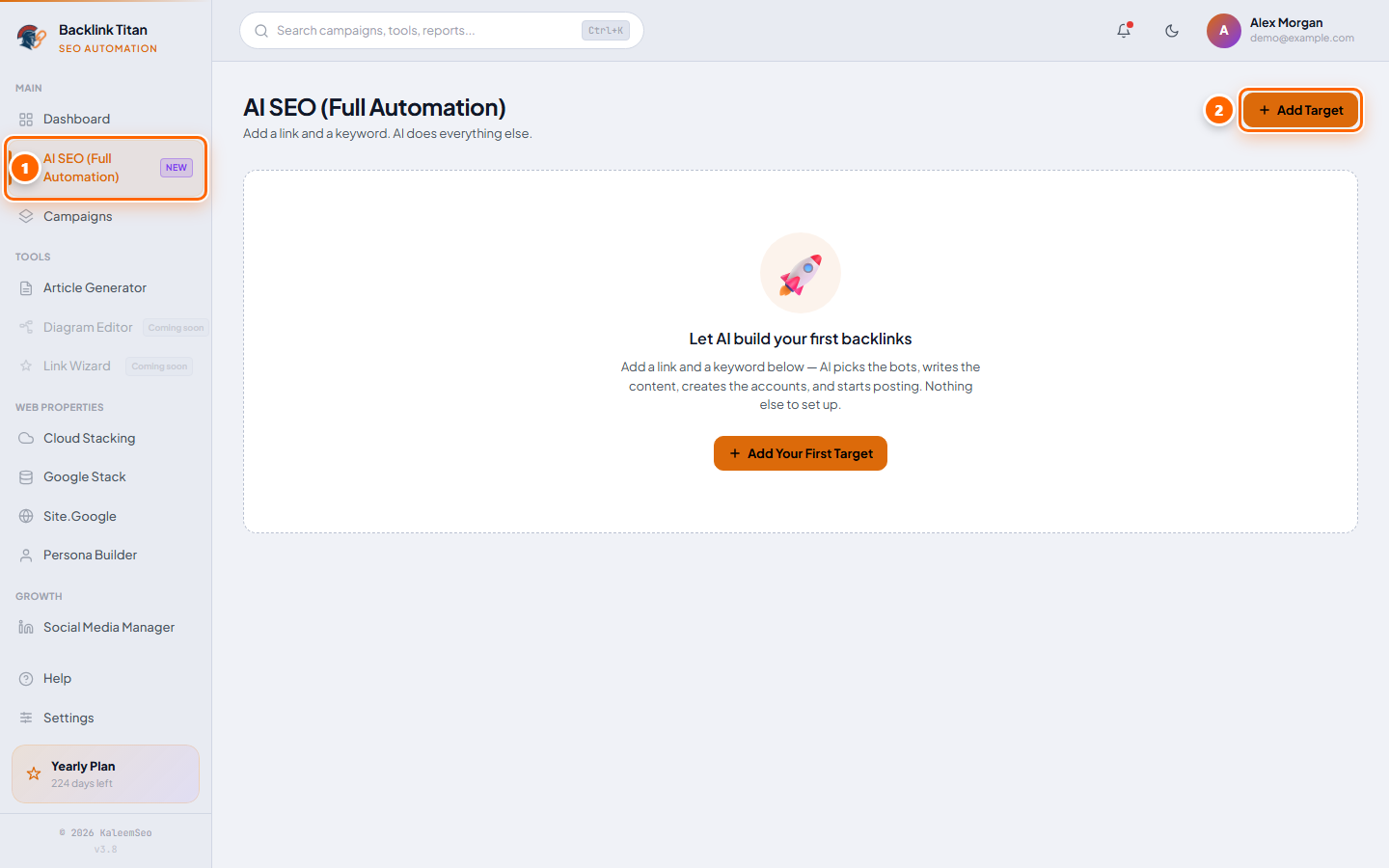
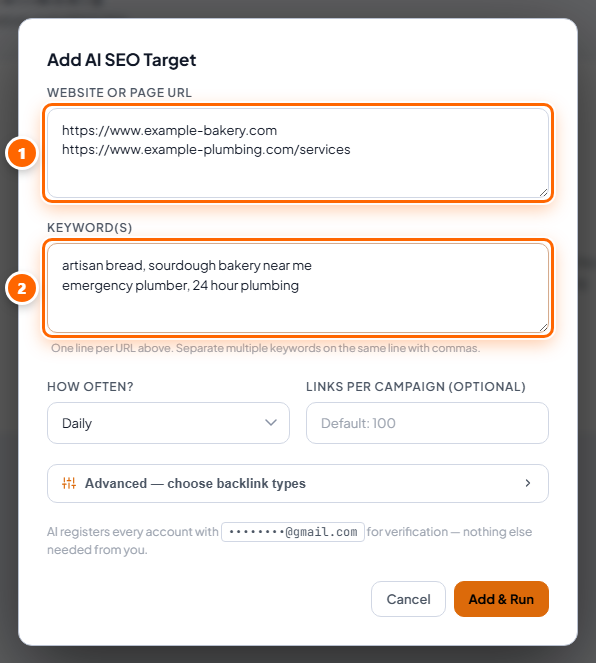
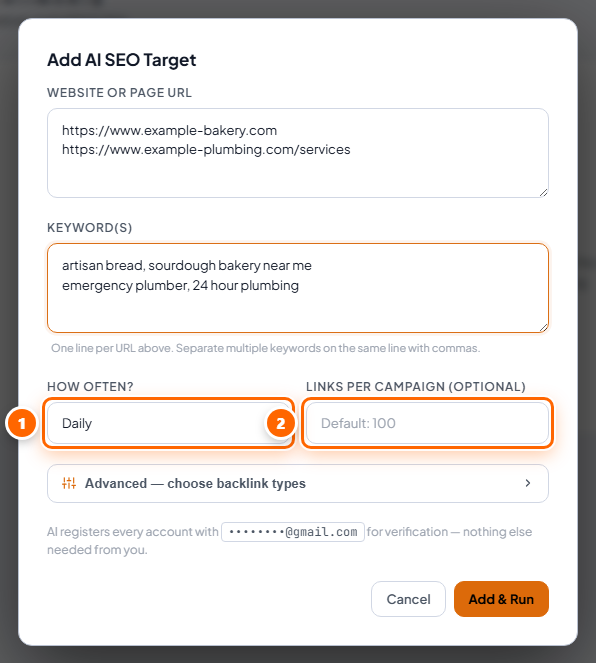
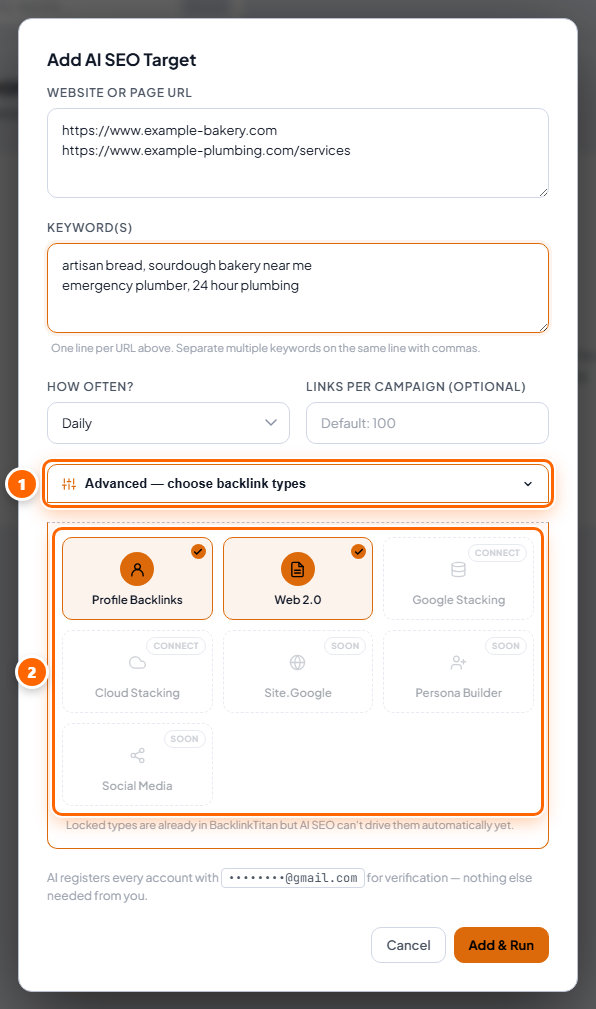
- Branded — your brand name (type it in Brand name, or leave it blank to use your domain name).
- Naked URL — the page address itself.
- Generic — words like “click here” or “this guide”.
- Partial / LSI — your other keywords from the same line, or a small variation of the first keyword.
- Exact match — the first keyword on the line, word for word.
Your own words: under each type, click + Use my own words and type your own list, one per line — for example Norwegian generic phrases such as klikk her and les mer, your own branded names, naked URL variants, or partial-match phrases. AI SEO rotates through your list and only repeats a word once every word has been used. Leave a type's box closed to use the automatic words. Each type card shows a count badge and highlights once it has your own words.

- Types → Skip some bots — switch it on, search the list and tick the sites you don't want links on.
- Content — choose Short (about 700 words), Medium (about 1,100) or Long (about 1,800), a writing style (Automatic, Professional, Friendly, Expert or Beginner) and extra keywords to work into the articles and use as partial anchors.
- Pacing → Daily link limit — the most links to build in one day. Keep Spread them through the day on to post one link at a time at an even pace instead of all at once. Profile links go first, then Web 2.0.
- Pacing → Active hours — only work between two times on your PC's clock (overnight windows like 22:00 to 06:00 work too). Outside the window a running campaign pauses by itself and carries on when it opens. Run Now outside the window tells you when it will start.
- Pages → Spread links across pages — add inner pages (one per line) and use the slider to set what share of the links goes to them. This applies to the Web 2.0 articles; profile links always use your main URL.
- Browser → Hide the browser windows — runs the bots without windows on your screen. A few sites block this, so switch it off if you see fewer links than before.
- Browser → Use proxies for this target — paste proxies (one per line) for this target only. Leave the box empty to use your list from Settings → Proxy. This applies to Profile and Web 2.0 bots.
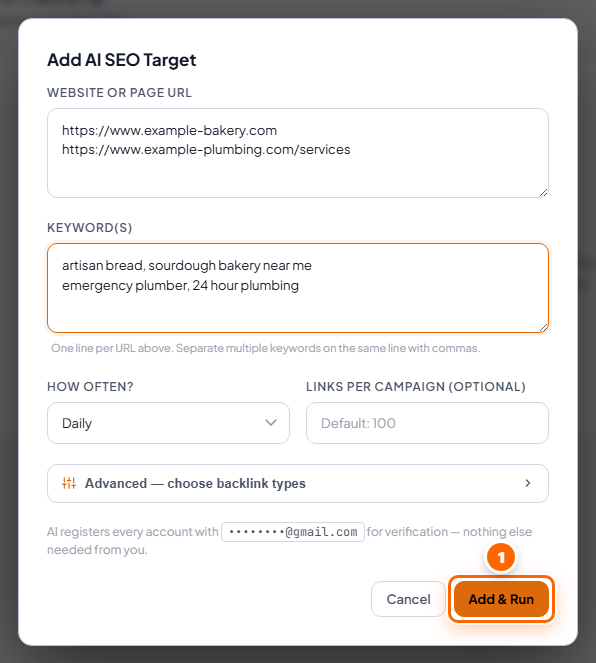
Follow your progress
Every target gets its own card showing its status (Running now, Scheduled or Paused), how many links have been built out of the target, a progress bar, and when the next campaign will run.
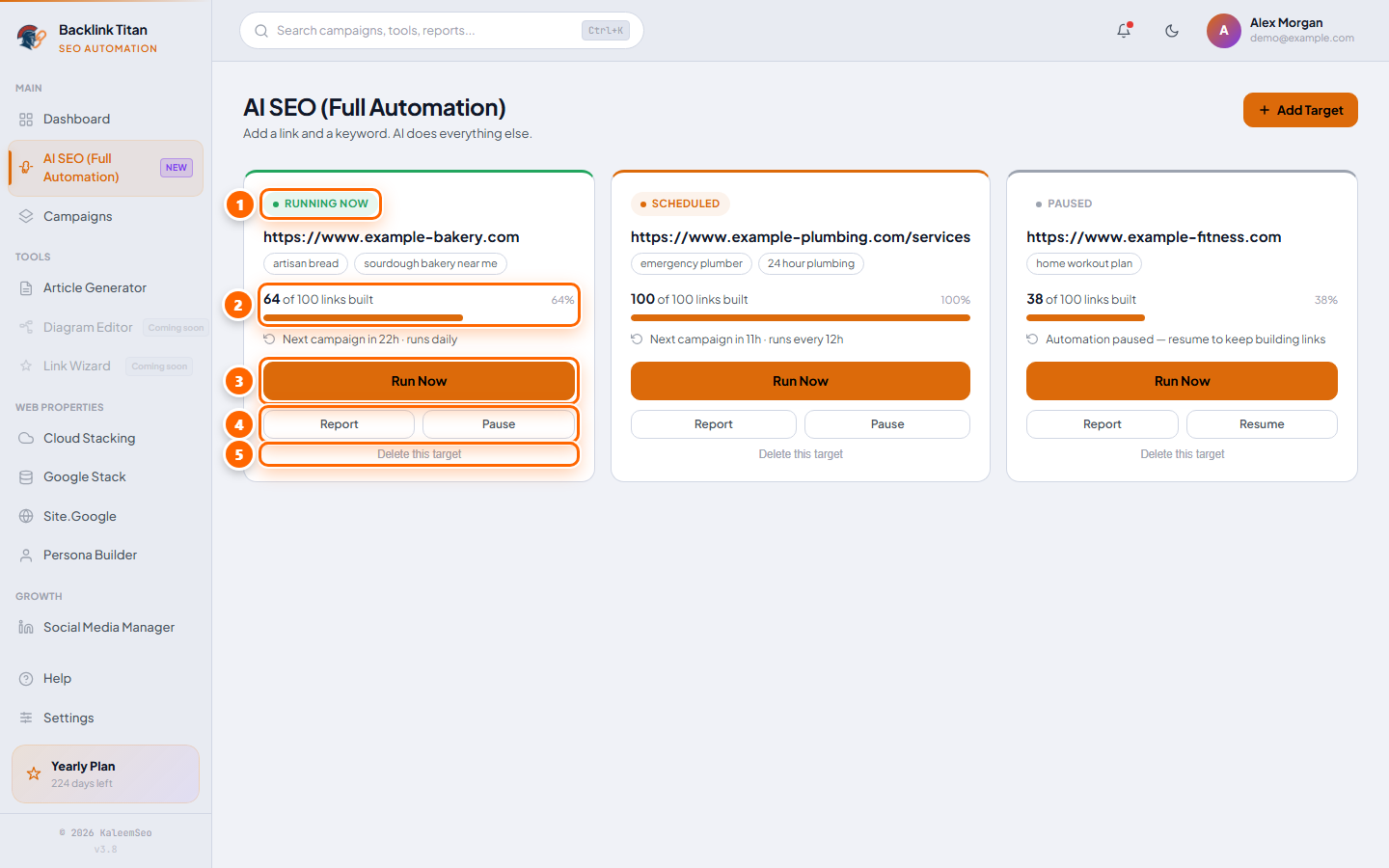
- Run Now — Starts a new campaign for this target immediately, without waiting for the schedule.
- Report — Shows what has been published for this target.
- Check links — Opens every link built for this target and shows how many are live and how many show your link, for example “18 of 20 links live”. Click that line to see each link. It also runs by itself when a campaign finishes. A few sites load their content with scripts, so a live page can still read as “link not found”.
- Pause / Resume — Stops or restarts the automation for this target. Its settings and history are kept.
- Delete this target — Removes the target and its schedule.
Good to know
- Keep BacklinkTitan open. AI SEO runs from inside the app, so scheduled campaigns only run while BacklinkTitan is open.
- Every Profile and Web 2.0 bot is used. If a site is down or a bot gets stuck, AI SEO skips it for that round and carries on with the others, so a few broken sites never stop your campaign.
- Small tags on a card (for example 20/day · spread or 09:00–23:00) show which Advanced options are switched on for that target. Options are chosen when you add a target.
- No email setup. AI SEO registers accounts with a built-in verification email, so nothing else is needed from you.
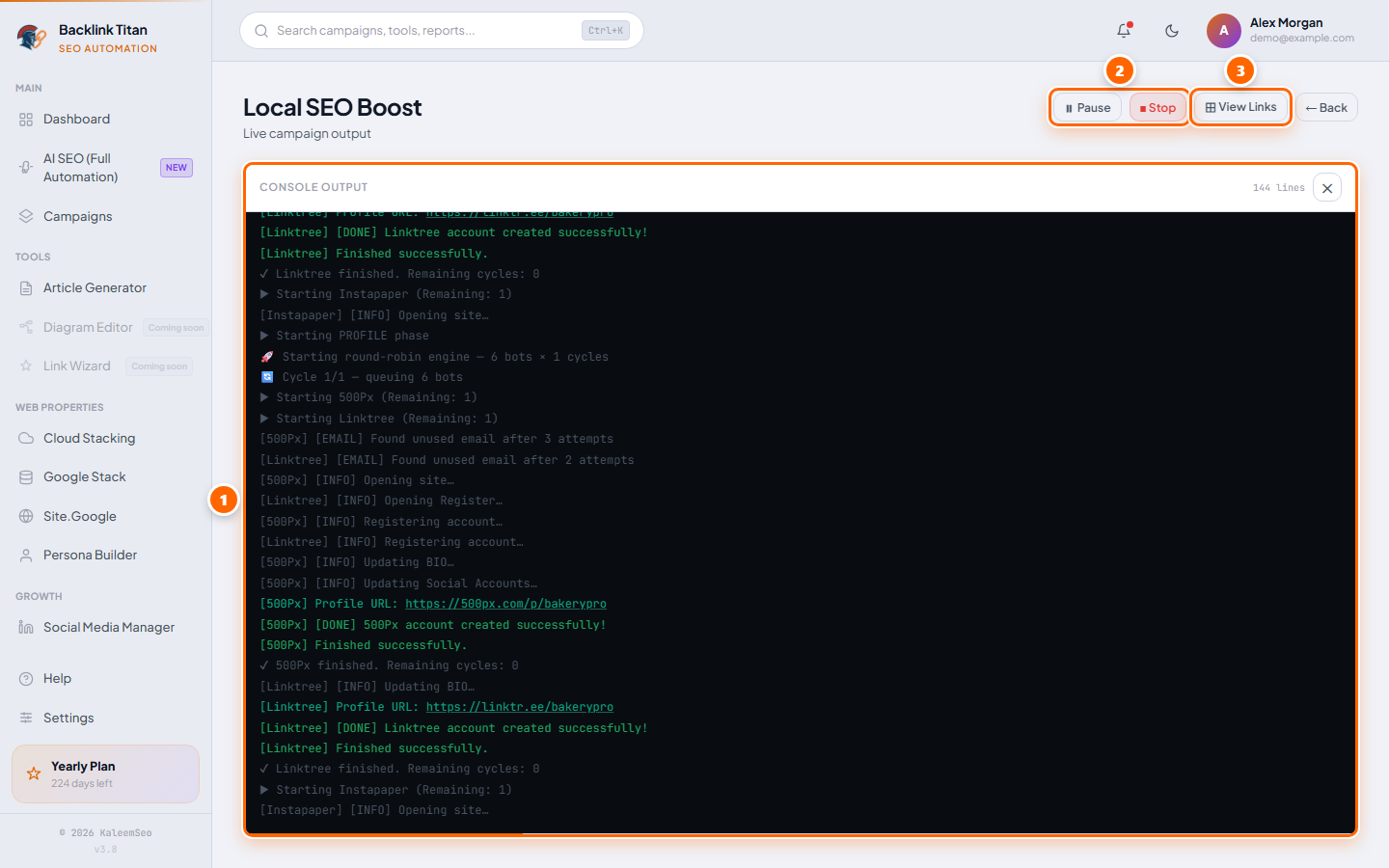
- Everything is visible. The campaigns AI SEO creates appear in Campaigns with an "AI SEO" name, so you can open their console, posted links and reports like any other campaign.
- Want full control instead? Build the campaign yourself with Hybrid Campaigns.
Article Generator
Batch-generate SEO articles and save them to buckets
The Article Generator uses BacklinkTitan's built-in local AI to batch-produce long-form SEO/AEO/GEO-optimized articles. Generated articles are filed in named buckets that campaigns can pull from automatically. The page has two tabs: Write (make new articles) and Archive (look after the ones you have).
Writing a Batch
Archive - Looking After Your Buckets
Silo Strategy
AI-planned pillar → cluster content, posted and interlinked automatically
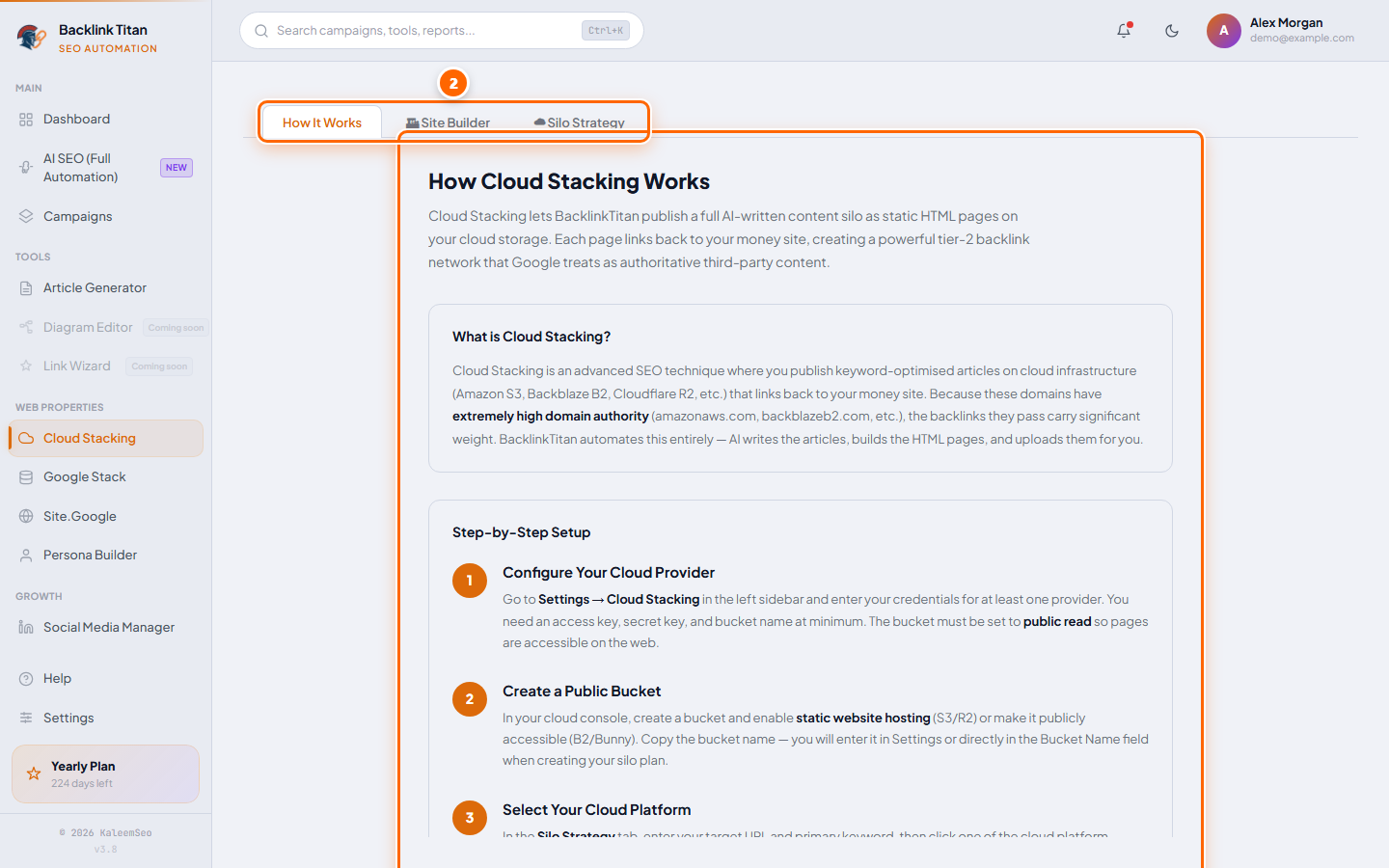
Silo Strategy is BacklinkTitan's AI content architect. It plans a full topical silo — one pillar article plus multiple cluster (and optional sub-cluster) articles — assigns each one to a bot or cloud provider, writes the content, posts it, and interlinks every piece with planned anchor text. You'll find it inside Cloud Stacking — open Cloud Stacking in the sidebar and switch to the Silo Strategy tab at the top of the page.
Planning a silo
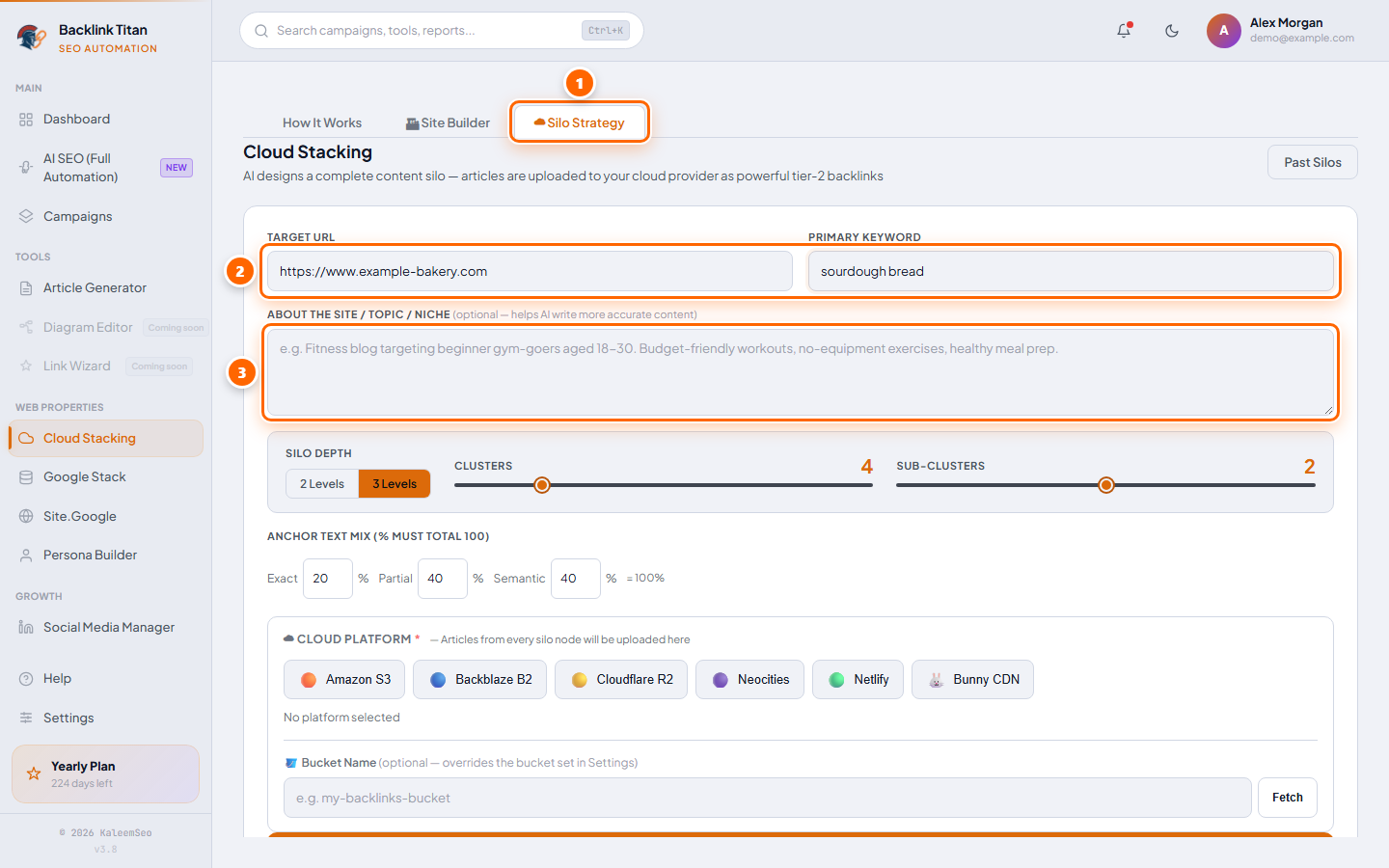
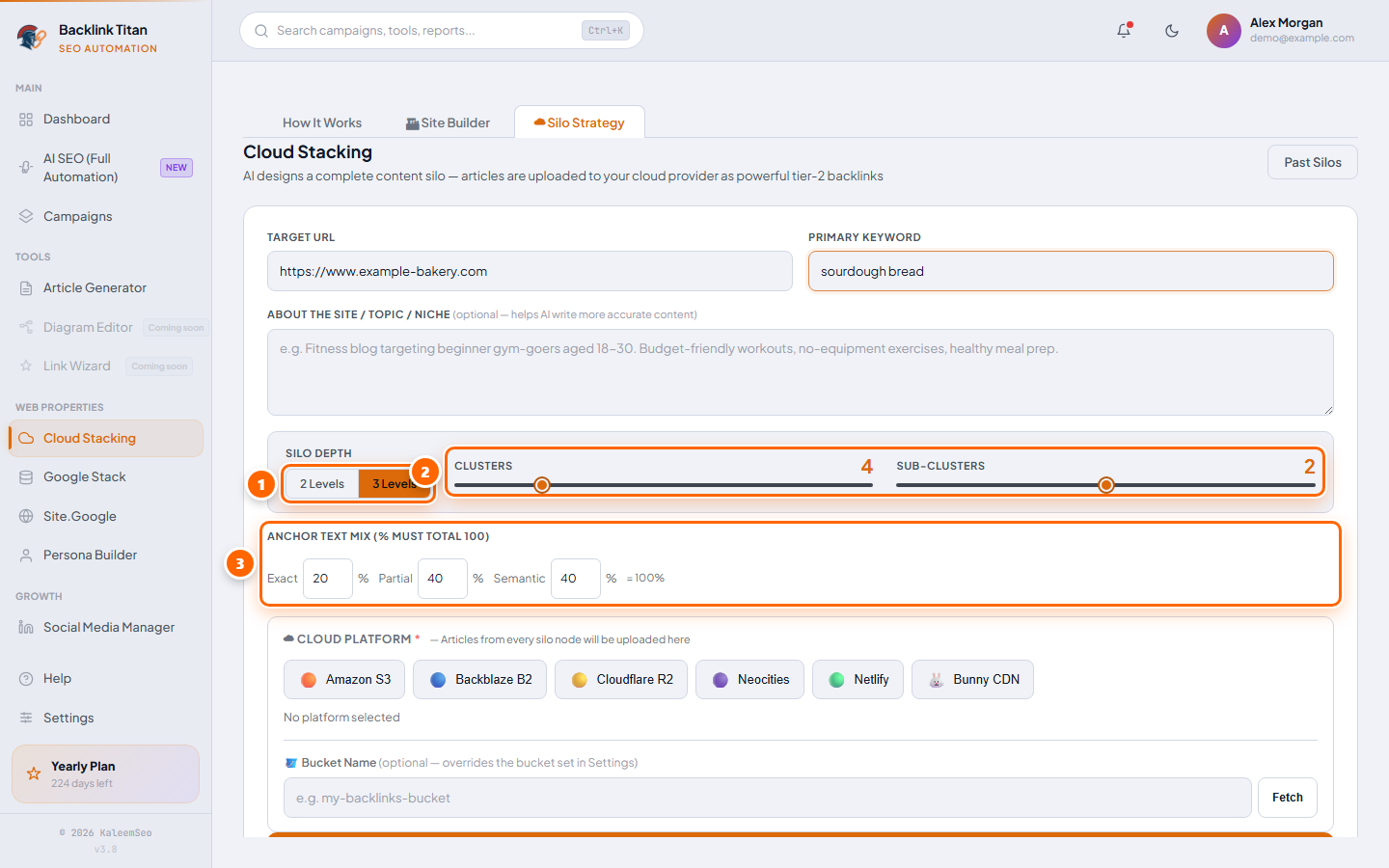
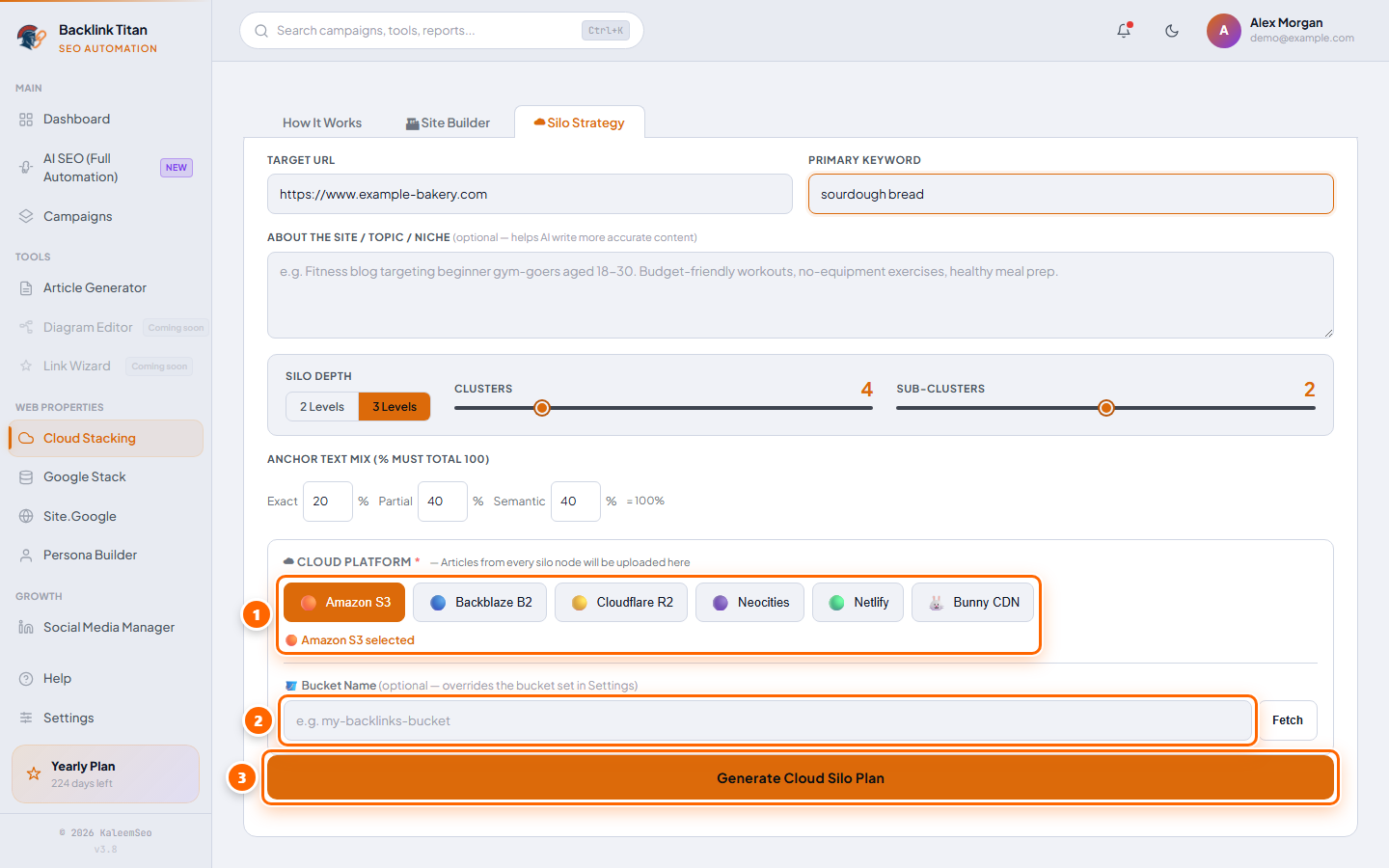
Reviewing and running the plan
Once generated, the plan opens in a review screen with a Diagram view (a visual pillar→cluster→sub-cluster tree with labeled connector arrows) and a Table view (the same data as flat rows). Each node card shows its title, keyword, search-intent badge, assigned bot or cloud provider, word count, and status.
| Control | What it does |
|---|---|
| 🔍 Validate | Runs a semantic relevance check on every node and shows a score bar (Strong / Acceptable / Weak) with a reason — weak nodes get a "Fix via AI Chat" shortcut |
| Bot Assignments panel | Override the AI-picked bot or cloud provider for any node via a dropdown; saves immediately |
| 🚀 Start Campaign | Begins AI-generating and posting every article in the silo, bot-by-bot, in the planned order |
| ⏹ Stop | Cancels an in-progress run |
| Live Activity log | Real-time timestamped log of every step as the silo executes |
| AI Assistant chat | Ask about the plan or request changes in plain language; chat history is kept per silo |
Past Silos
Click Past Silos from the planning screen to see every silo you've built, with keyword, URL, article count, progress, and status — click any entry to reopen it, or delete it from the list.
Cloud Stacking
Upload AI articles to 12 cloud providers — DA 68–96 backlinks
Cloud Stacking uploads AI-generated article pages as static HTML to cloud storage providers. Because these files live on Amazon S3, Cloudflare R2, Neocities, etc., the backlinks carry the authority of those Fortune 500 domains.
Supported Providers
| Provider | What you need |
|---|---|
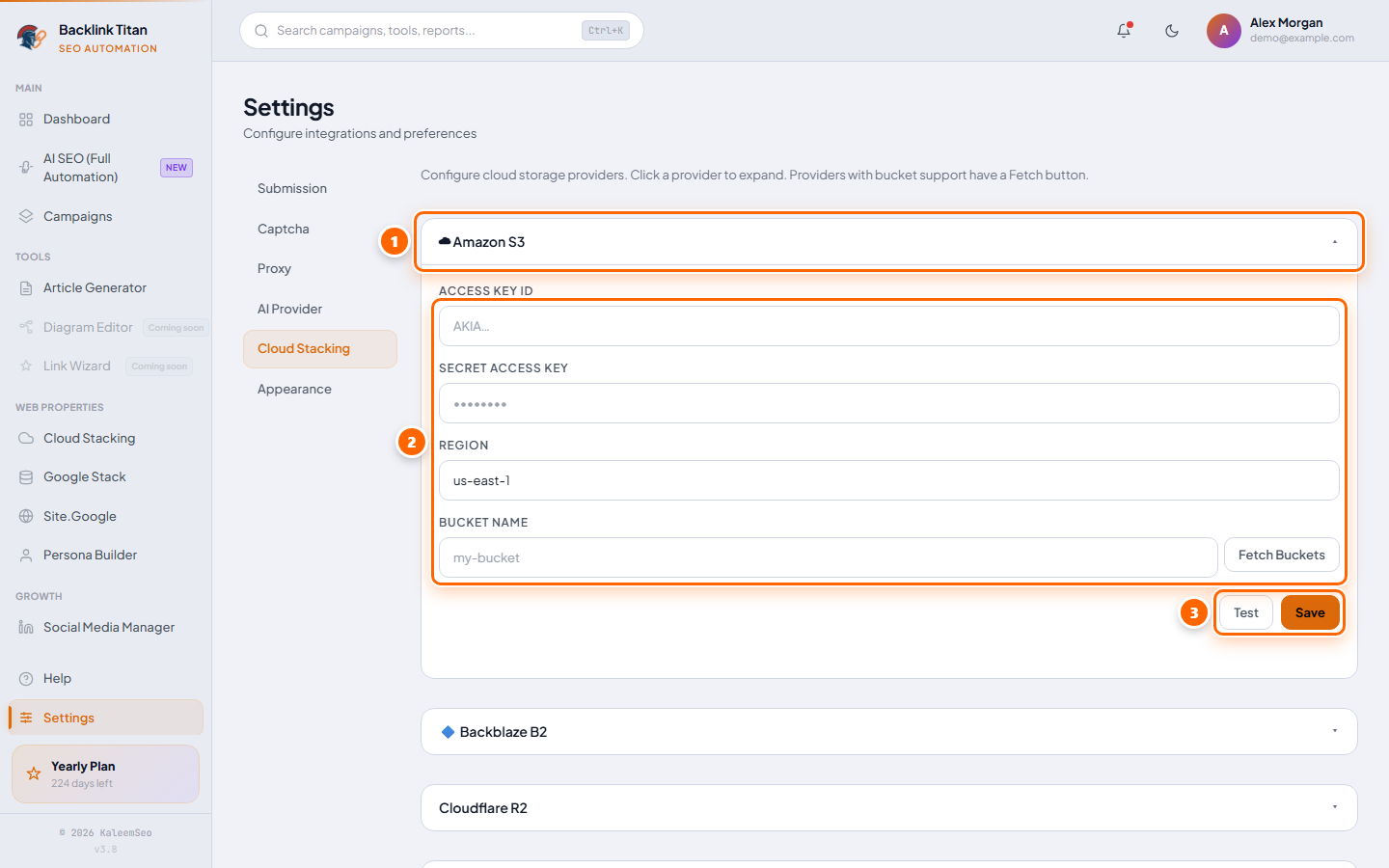
| Amazon S3 | AWS Access Key, Secret Key, Region, Bucket name (must have public read enabled) |
| Backblaze B2 | Key ID, Application Key, Region, Bucket name |
| Cloudflare R2 | Access Key, Secret Key, Account ID, Bucket name, Public domain |
| Neocities | API Key and site name |
| Netlify | Personal access token and Site ID |
| Bunny CDN | API Key, Storage Zone name, Region |
Setup
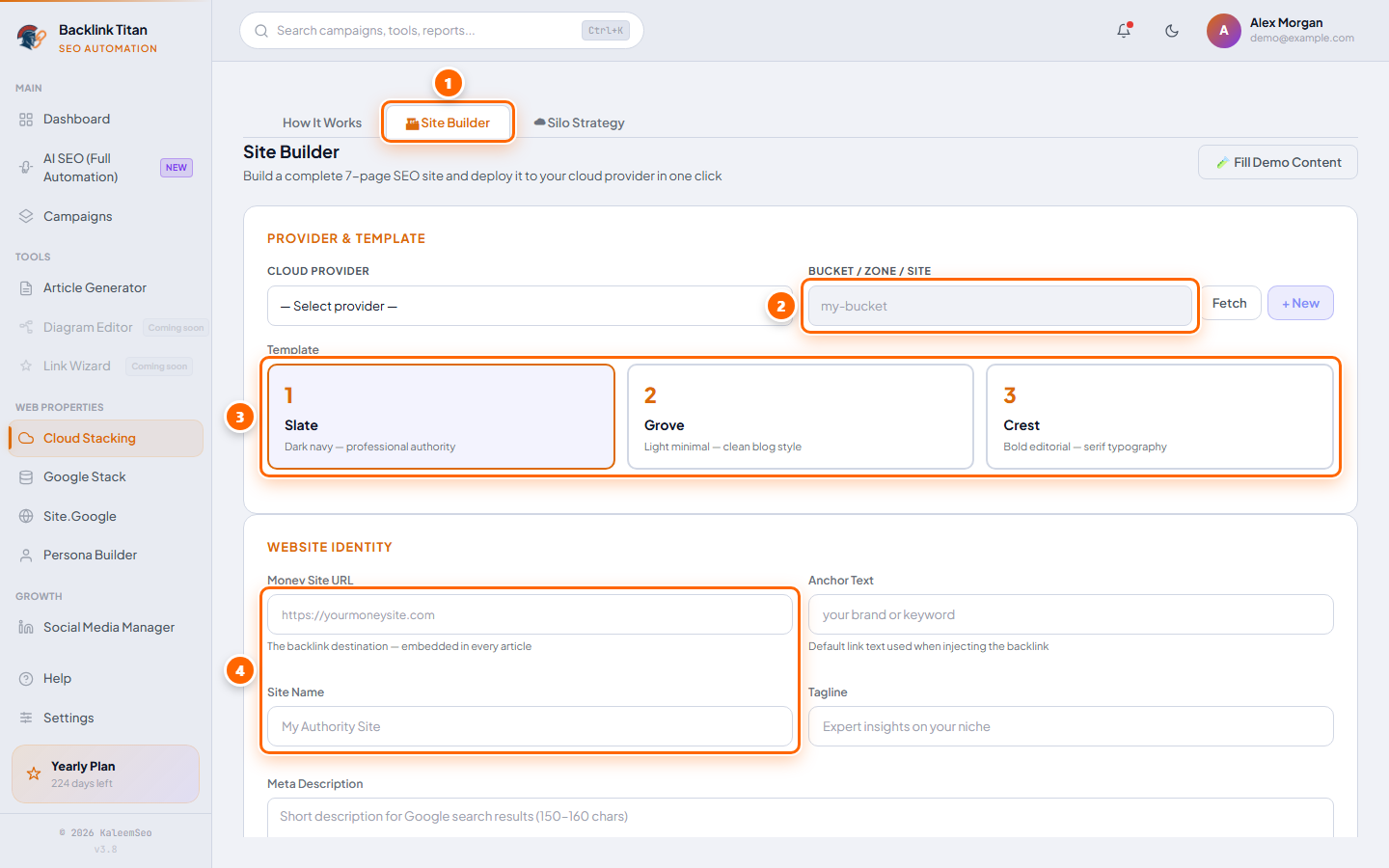
Go to Settings → Cloud Stacking tab and fill in credentials for the providers you want to use — each provider is its own collapsible card with a Test and Save button. Then go to Cloud Stacking in the sidebar, create a site, and click Publish — the system builds a static HTML blog and uploads it to your selected providers.
Google Stack
Interlinked Google Docs, Sheets, and Slides — DA 100
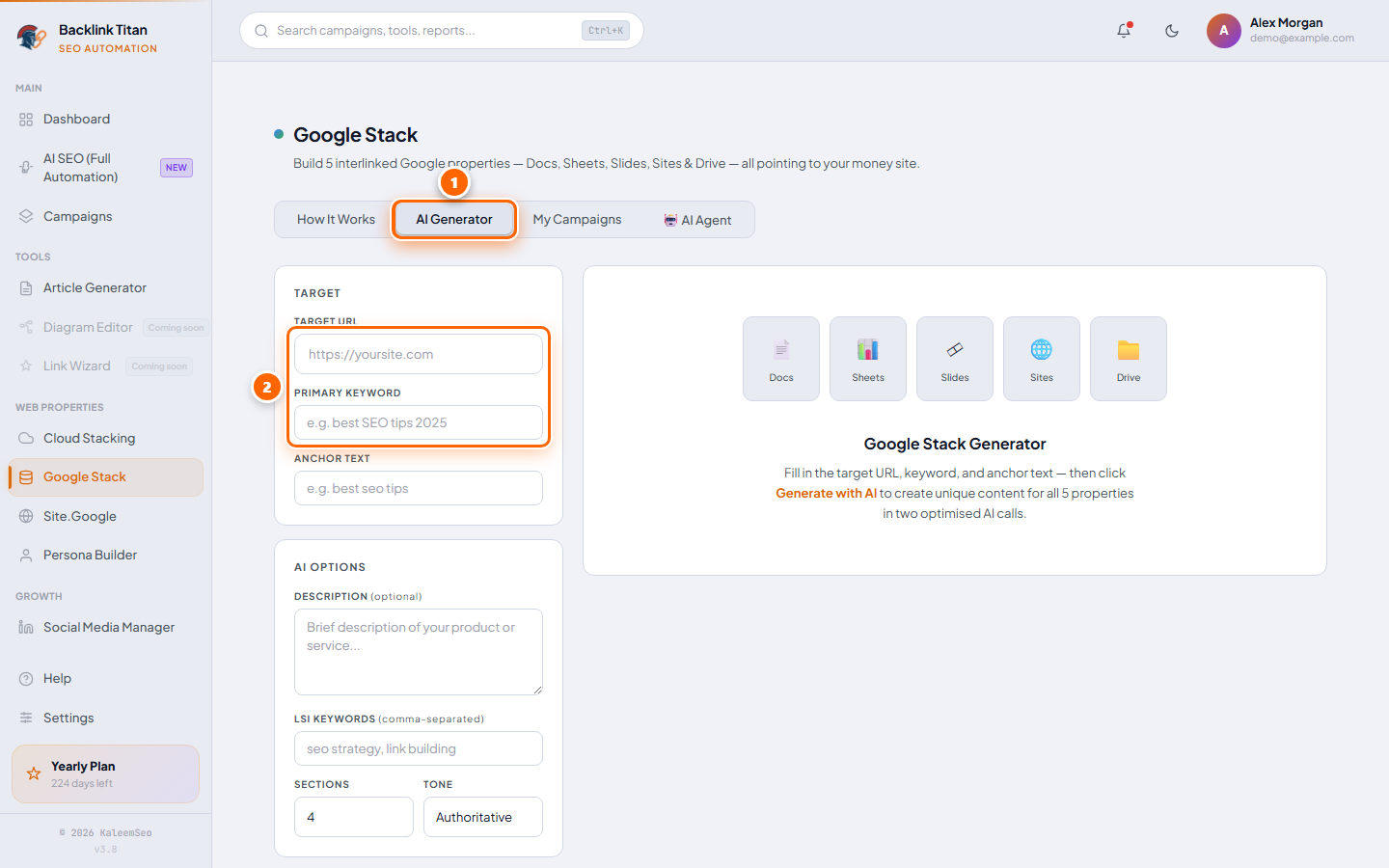
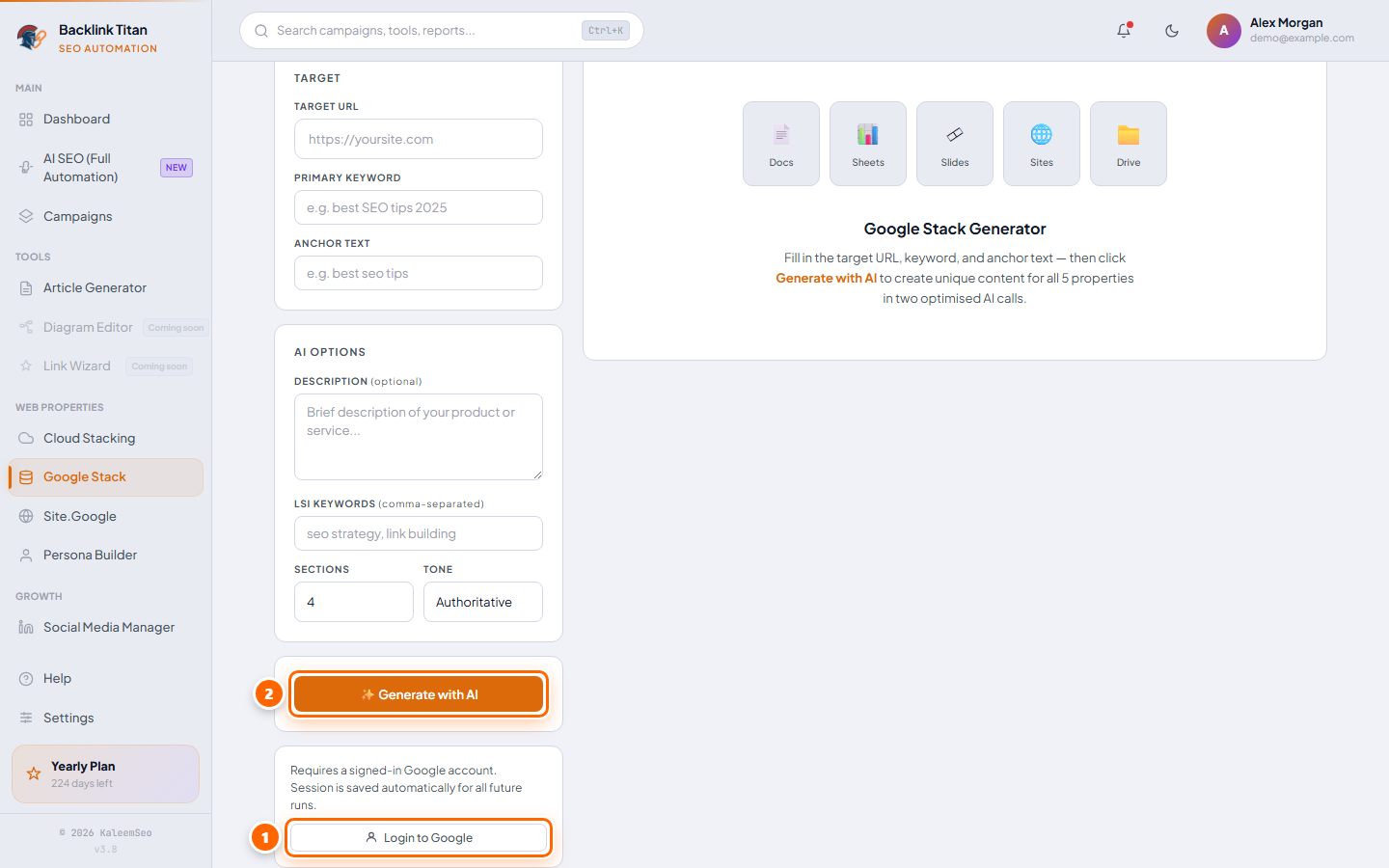
Google trusts its own properties. The Google Stack bot creates interlinked Google Docs, Sheets, and Slides filled with keyword-optimized content that links back to your money site. Because these are hosted on google.com (DA 100), the link signals are exceptionally strong.
Prerequisites — Google Login
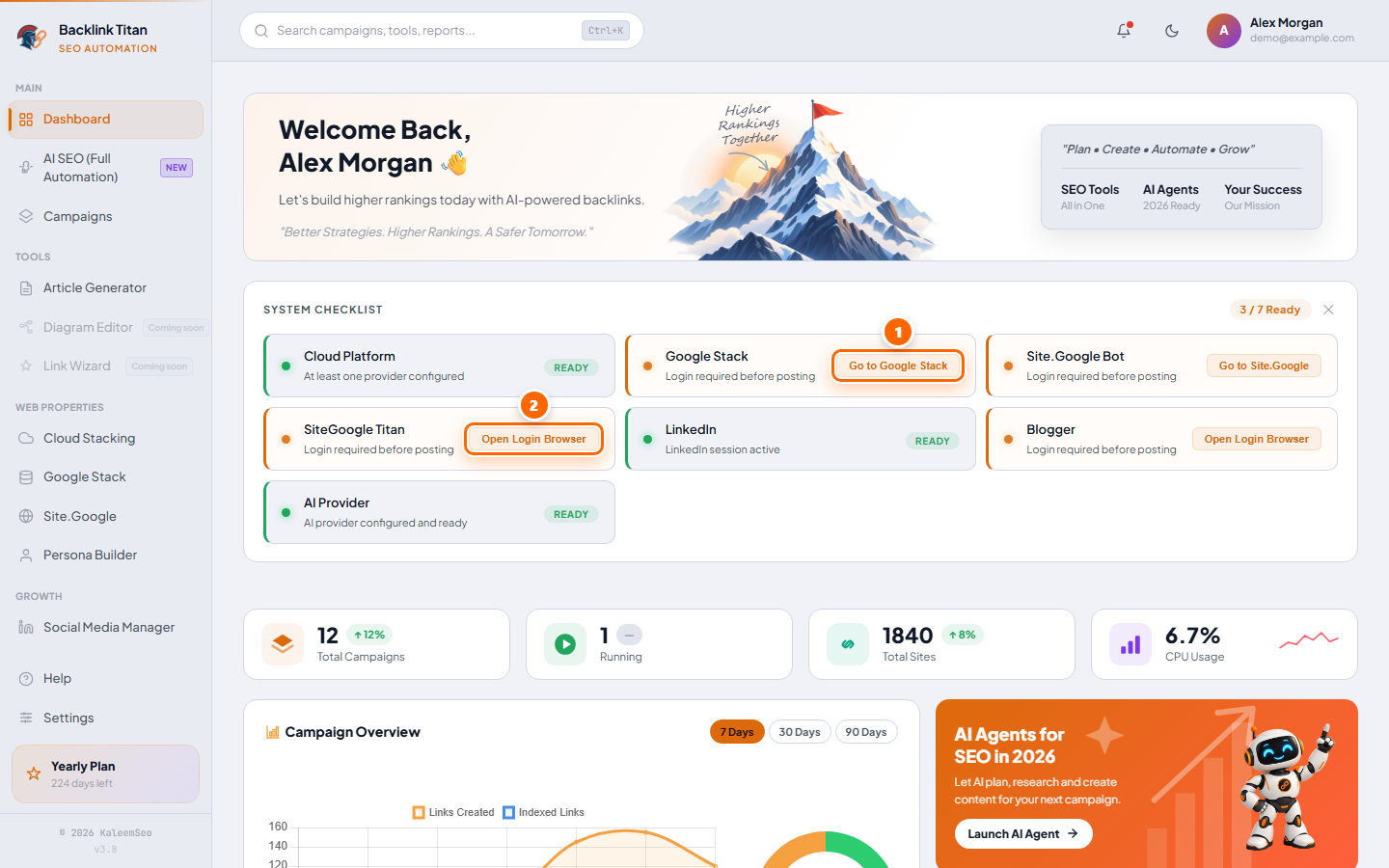
Google Stack requires a persistent Google login. Before running any campaigns:
Site.Google Builder
Multi-page Google Sites with a full internal link structure
The Site.Google builder creates a complete Google Site with a pillar page and multiple supporting cluster pages, all interlinked. The pages are planned by AI and published using a saved Google login — so the entire site is built and live within minutes.
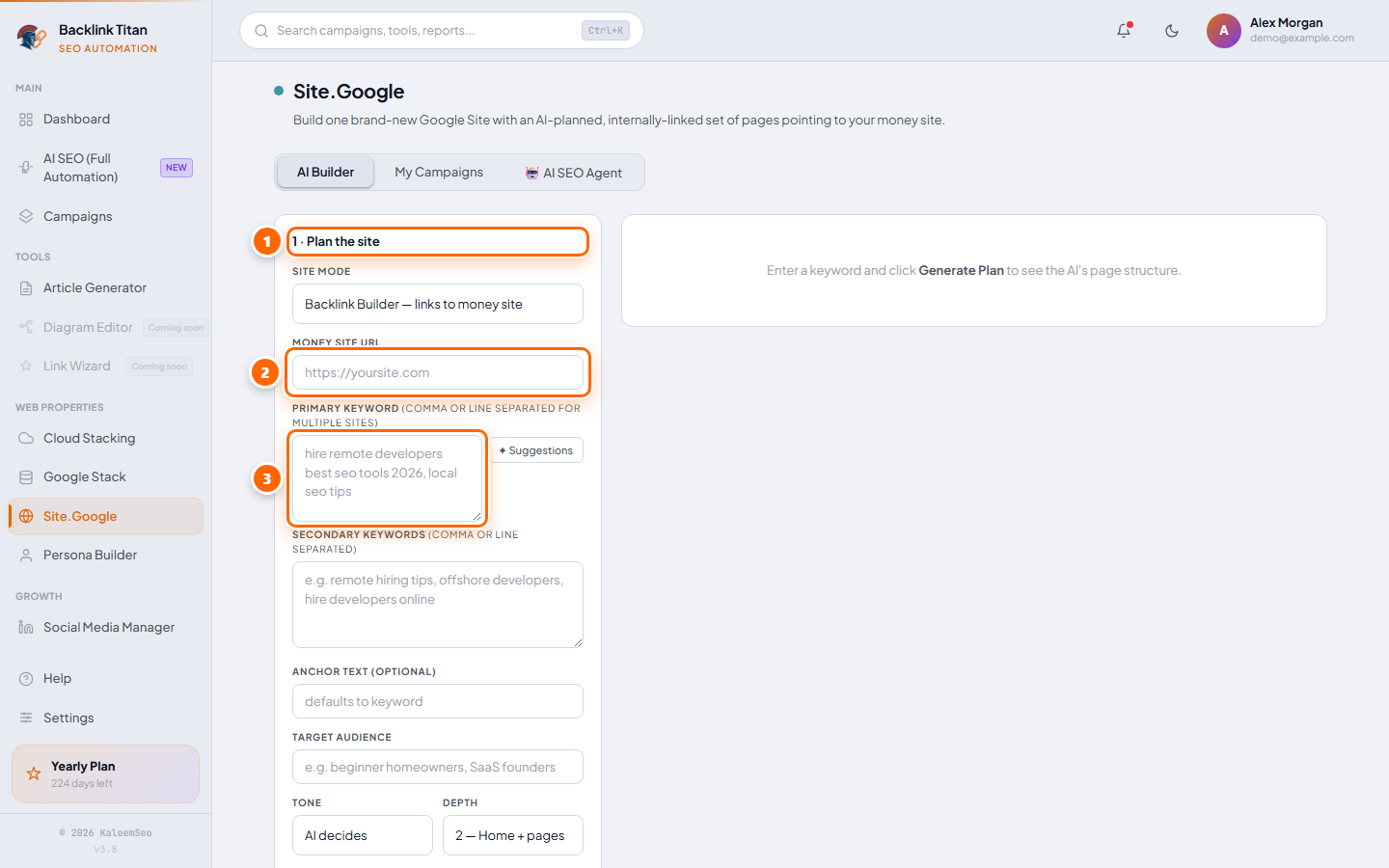
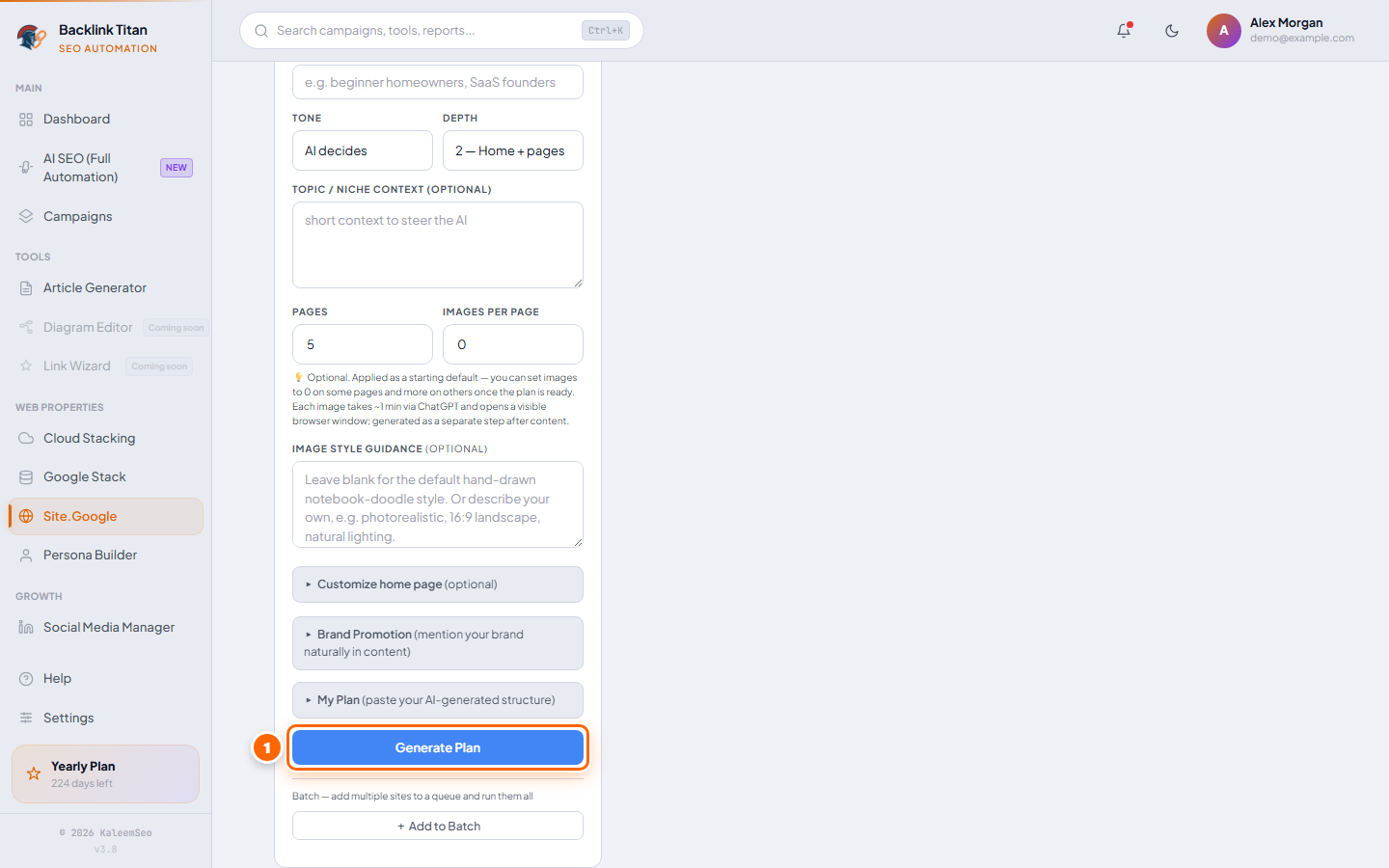
Setup is the same as Google Stack — you need a saved Google login session via the System Checklist. Go to Site.Google in the sidebar, enter your target URL and primary keyword, and the system plans and builds the full site automatically.
Persona Builder
AI personas with their own static site, uploaded to the cloud on autopilot
Persona Builder (Persona Factory) generates a fictional — or, if you choose, real-brand — persona with a full static site (bio, blog posts, contact info) built from a template, then uploads it to a cloud provider as a standalone, indexable site linking to your target URL.
Builder — generating a persona
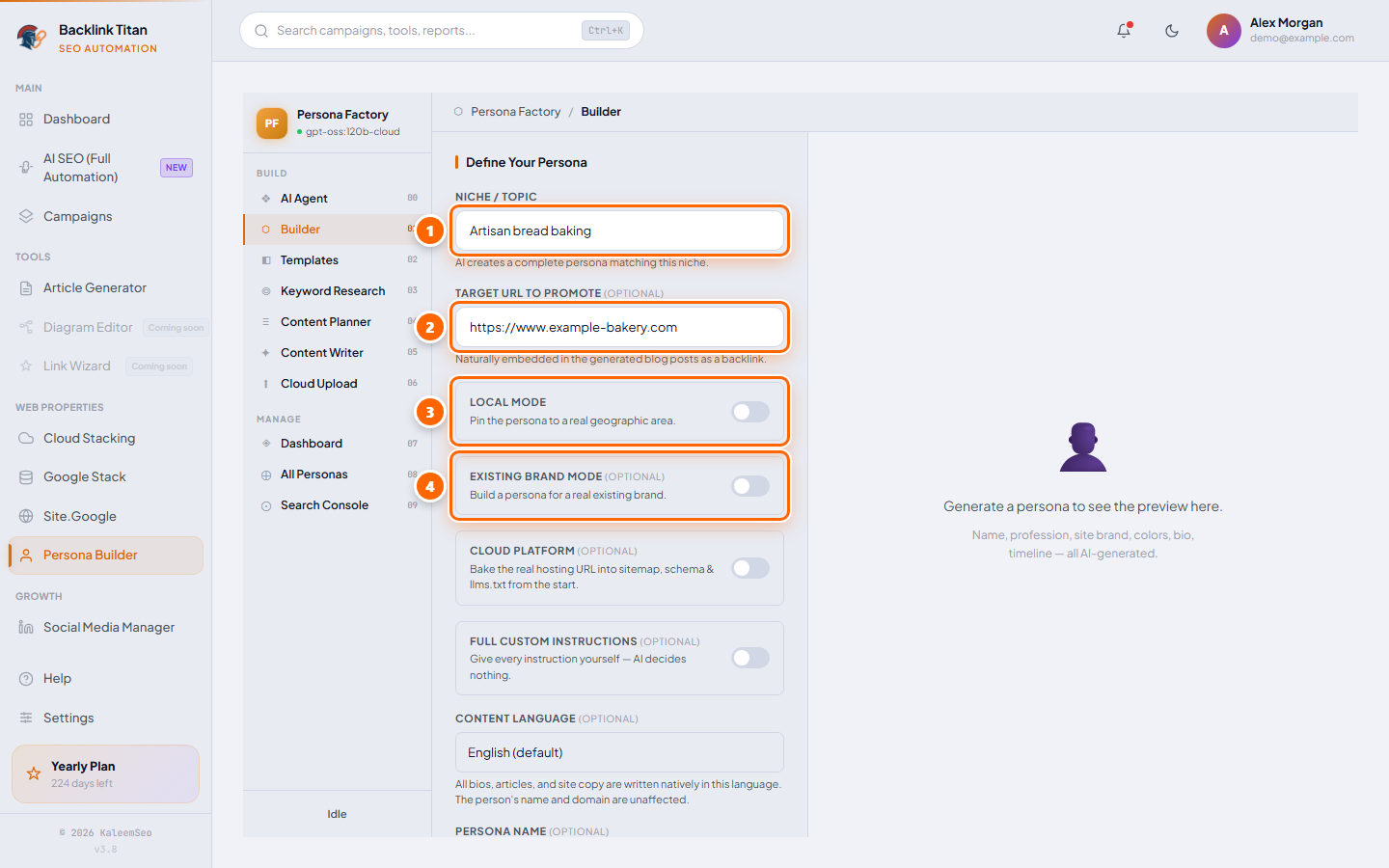
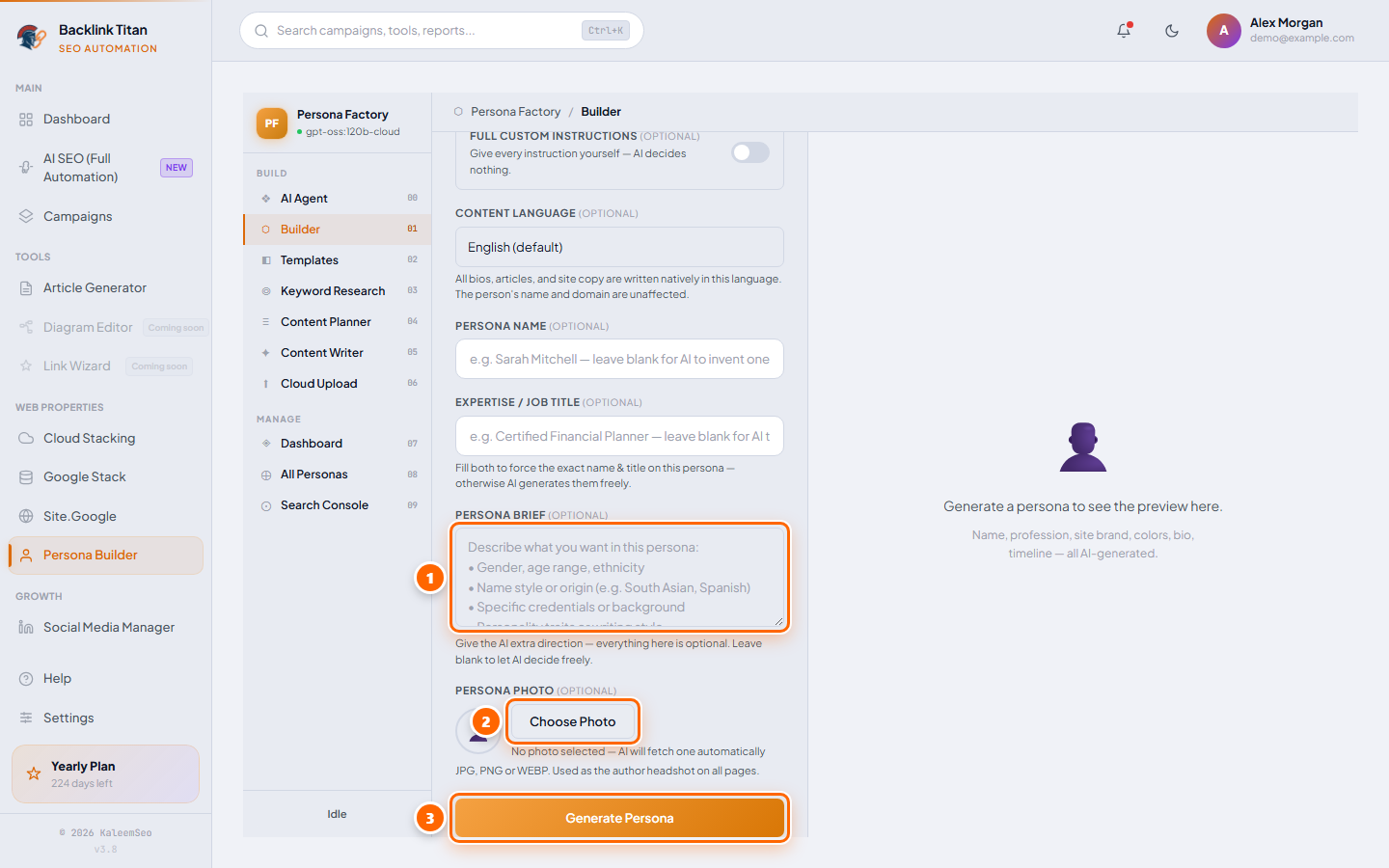
Cloud Upload
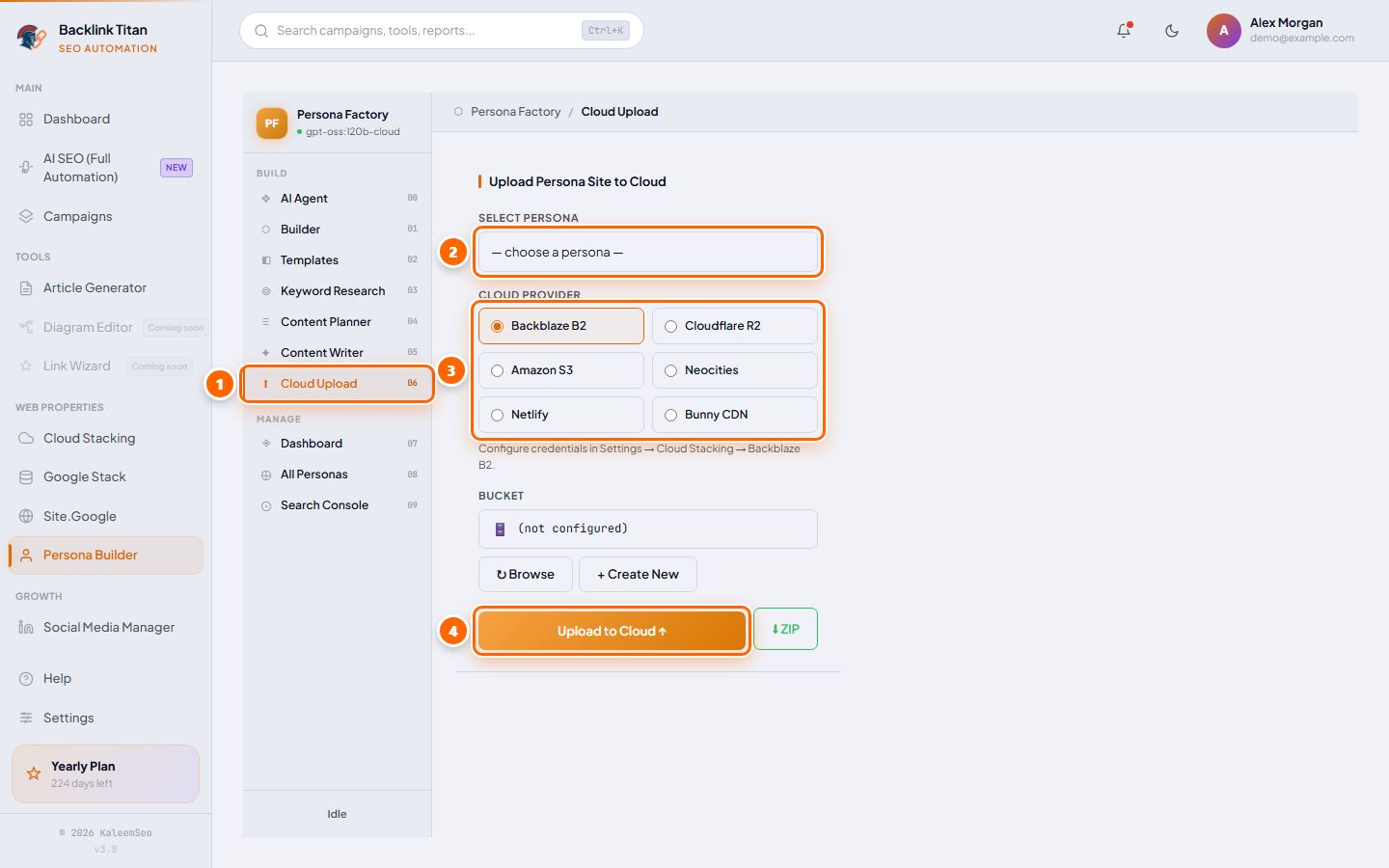
Select the persona and a Cloud Provider (Backblaze B2, Cloudflare R2, Amazon S3, Neocities, Netlify, or Bunny CDN), choose an existing bucket/zone or create a new one, then click Upload to Cloud ↑. A live log tracks the upload and finishes with a "Site is live!" link. Prefer to host it yourself? Click ⬇ ZIP to download the built site instead.
Dashboard
Each persona has a Dashboard showing a 6-stage readiness pipeline — Persona Built → Template Assigned → Keyword Research → Content Planner → Content Written → Cloud Upload — plus quick stats (pages, blog posts, cloud status) and quick actions (Open Folder, Build Site, Upload to Cloud, SEO Review).
All Personas & Autopilot
The All Personas tab lists every persona you've built with stats and actions (Open, Upload, Dashboard, Duplicate). Each card has an Autopilot panel for recurring content cycles:
| Field | Purpose |
|---|---|
| Every N days | How often autopilot runs a new cycle (default 7, max 30) |
| N articles | How many new articles it writes per cycle (default 2, max 5) |
| Upload to | Which cloud provider to publish to each cycle, or "skip upload" to only write content locally |
Click Enable to start the schedule, ▶ Run Now to trigger a cycle immediately, or History to see a log of past runs. While a cycle runs, the card shows a live step-by-step status instead of the schedule.
Search Console
The Search Console tab connects persona sites to Google Search Console: add your service_account.json path and test the connection, review your daily Indexing API quota (200/day) and verified properties, then click Submit All URLs Now to push persona pages for indexing. The Analytics panel lets you check performance and inspect index status per URL.
Link Wheel
Interlinked guest notes across every HedgeDoc site, boosting indexing
Link Wheel creates a guest note on every HedgeDoc/markdown site BacklinkTitan supports, then edits each note to link to all the others plus your target URLs — a classic link wheel structure that helps crawlers discover and index your backlinks faster.
Running it
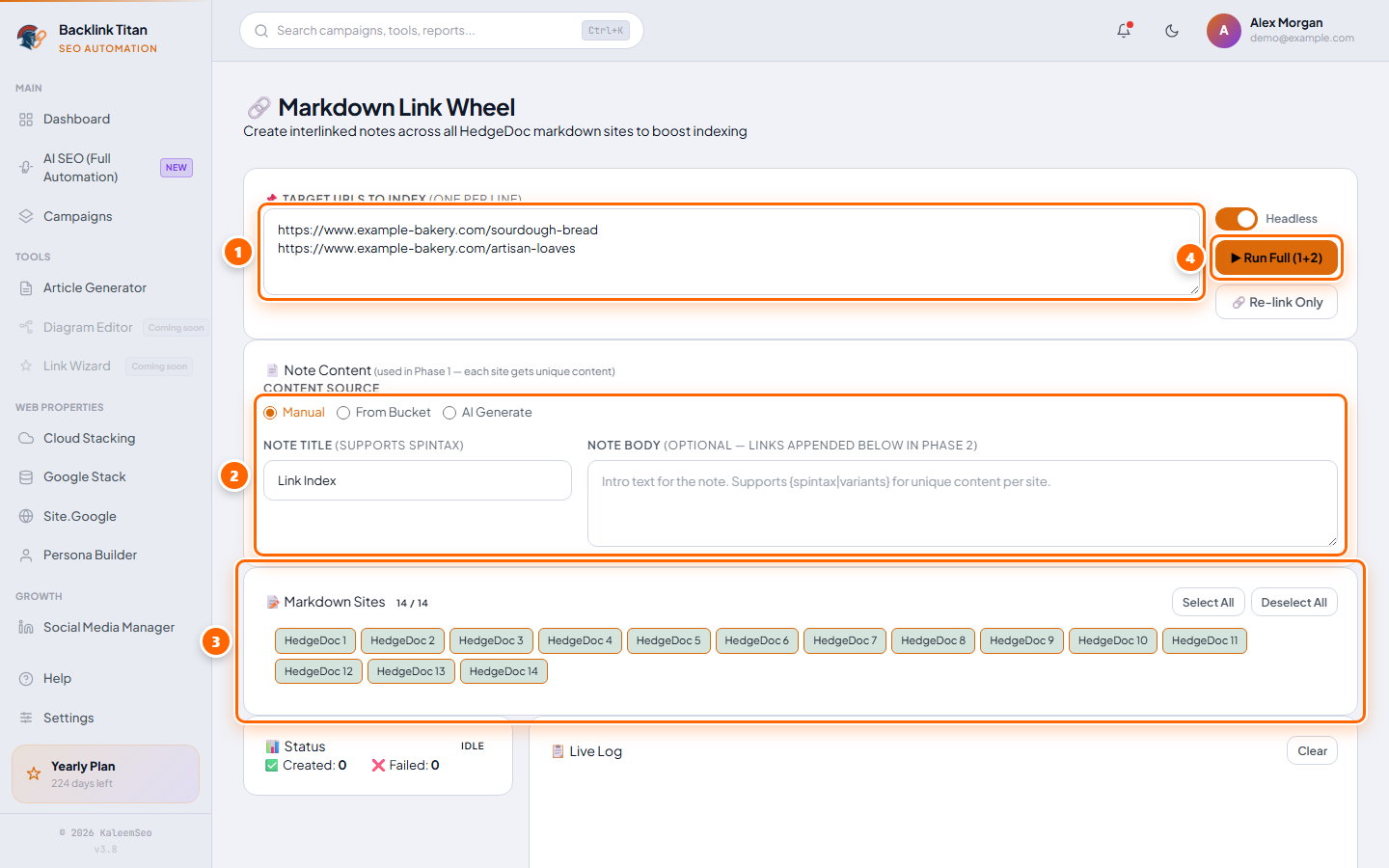
A status card shows progress live as each site is processed, with success/fail counters. Once notes exist, a results panel lists every created note URL with a one-click Copy button, and a live log panel streams every step as it happens.
Built-in Indexer In the Next Update
Force Googlebot to crawl and index 90% of your backlinks automatically
Most SEO software builds backlinks and stops there — leaving your links to sit unindexed for weeks or never getting discovered at all. BacklinkTitan is different. The next update ships a built-in indexer that actively forces Googlebot to recrawl your backlinks until they appear in Google's index.
How It Works
BacklinkTitan's indexer is built on the same strategies used by the biggest link indexing companies in the industry. Instead of submitting once and hoping, we use a multi-signal approach that keeps pushing Googlebot back to your links:
| What we do | Why it works |
|---|---|
| Multi-signal crawl triggering | We fire multiple discovery signals at each backlink simultaneously — the same technique large-scale indexing services charge hundreds per month for. |
| Recrawl forcing | If a link hasn't been indexed after the first pass, the system schedules follow-up crawl pushes until Googlebot confirms the page. |
| Indexable-only links | Every platform in BacklinkTitan was chosen because it produces crawlable, indexable pages. We do not waste your time with noindex or disallowed URLs. |
| Regular status checks | The AI Agent queries Google's index on a schedule and updates the status of every link in your list — indexed, pending, or not yet crawled. |
AI Agent Handles Everything
You don't need to manage the indexing process manually. The new AI Agent integration takes over completely:
This feature is exclusive to Lifetime Access members. Get Lifetime Access →
Settings
Seven tabs: Submission, Captcha, Proxy, AI Provider, Cloud Stacking, Bot Updates, Appearance
Every Settings tab saves independently — there's no single global Save button. Change a tab, click its own Save, move to the next.
Submission
Global retry/timeout tuning applied to every bot run, plus content and logging behavior.
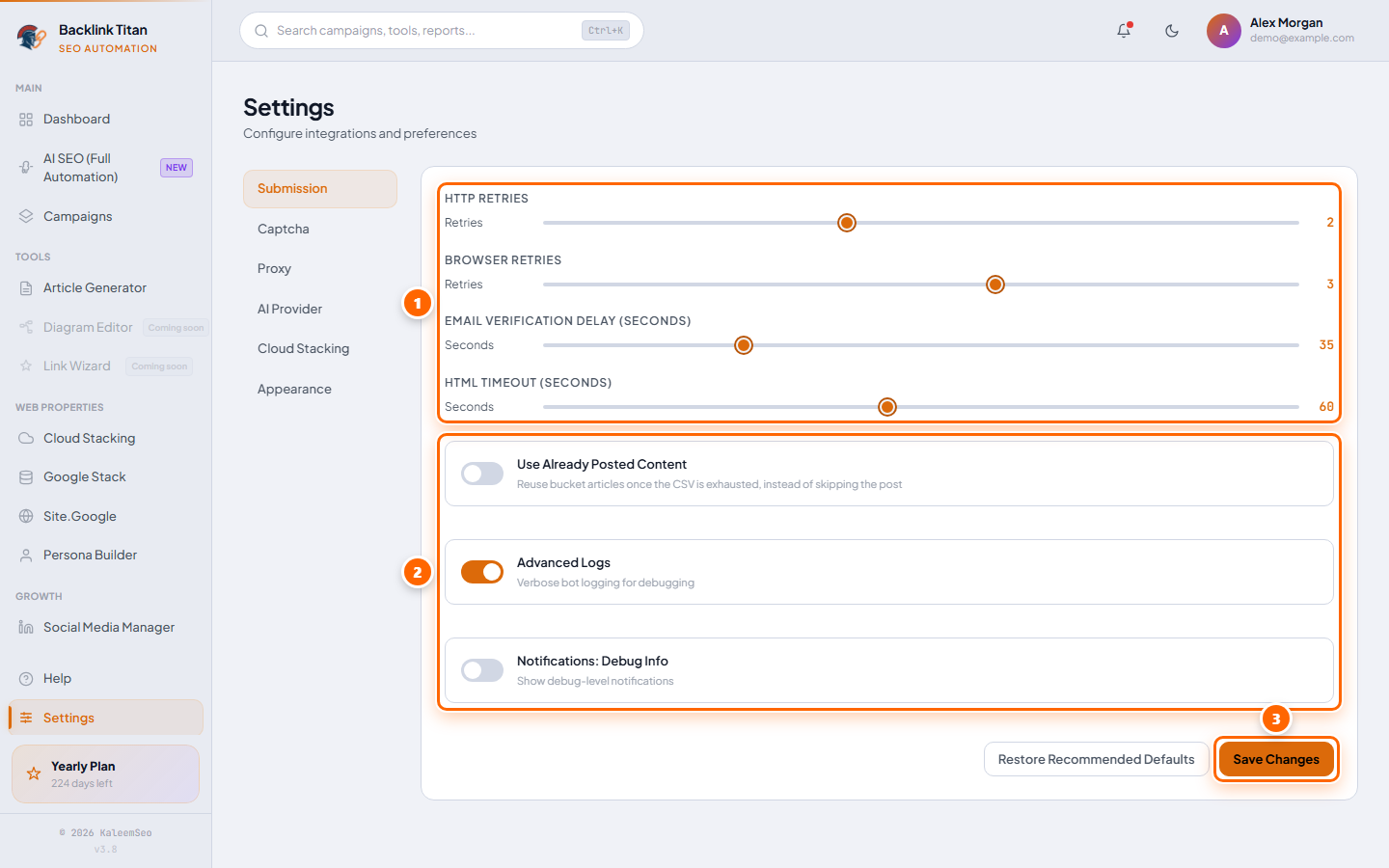
| Field | What it does |
|---|---|
| HTTP Retries | 0–5 (default 2) — how many times a failed HTTP request is retried |
| Browser Retries | 0–5 (default 3) — how many times a failed page load/action is retried |
| Email Verification Delay | 5–120 seconds (default 35) — how long bots wait for a verification email before giving up |
| HTML Timeout | 10–120 seconds (default 60) — max time a bot waits for a page to load |
| Use Already Posted Content | When a bucket's articles run out, reuse them instead of skipping the post |
| Advanced Logs | Verbose bot logging — useful when troubleshooting a stuck bot |
| Notifications: Debug Info | Shows debug-level notifications in the app |
Click Restore Recommended Defaults at any time to reset this tab, or Save Changes to apply your values.
Captcha
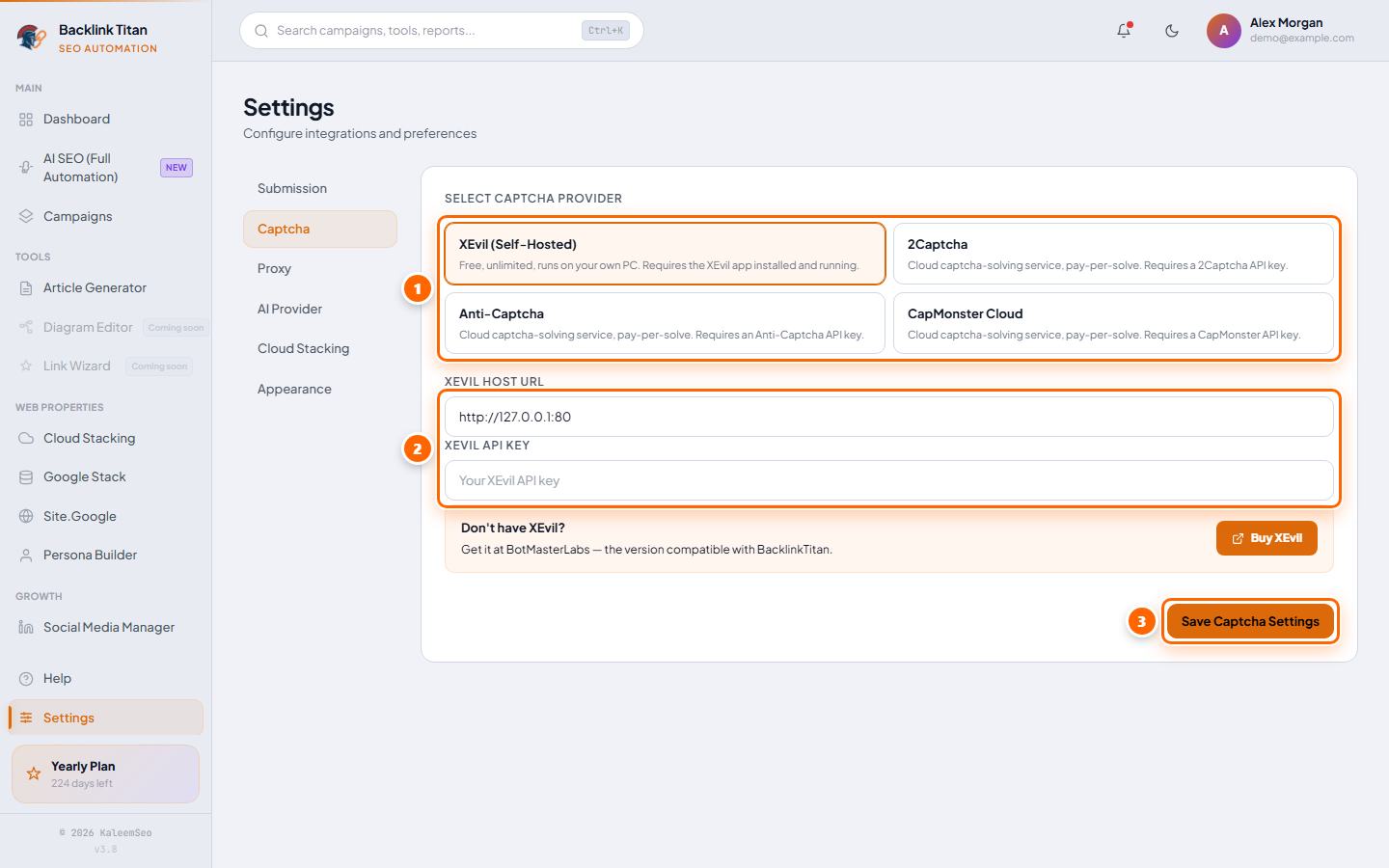
XEvil Host URL (default http://127.0.0.1:80) and XEvil API Key — see the Captcha Solving section below for full setup.
Proxy
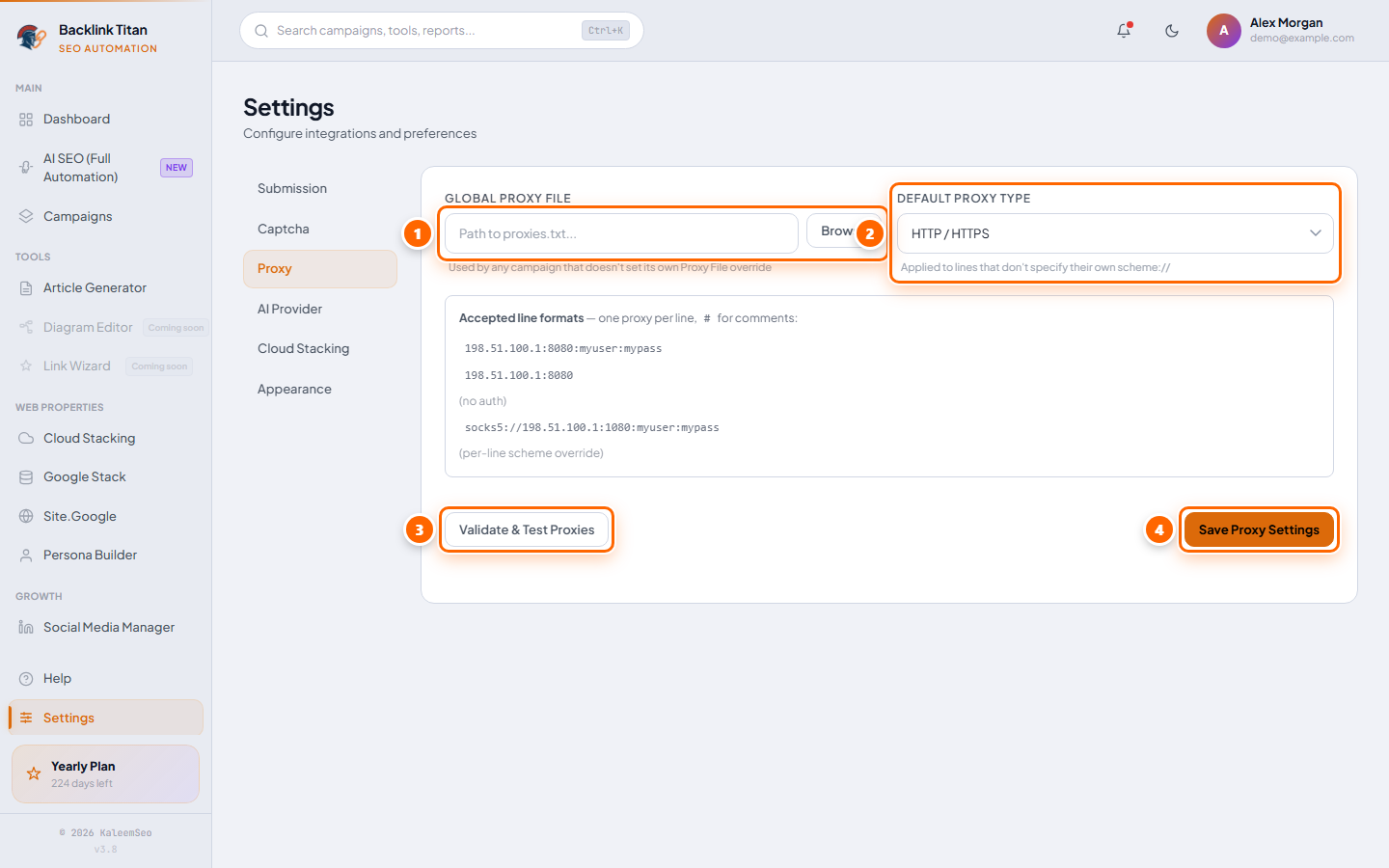
Global Proxy File — used by any campaign that doesn't set its own override — and Default Proxy Type (HTTP/HTTPS or SOCKS5). Click Validate & Test Proxies to check your list before running a campaign. See the Proxies section below for the file format.
AI Provider
Choose between four AI providers, each its own card: Ollama, OpenAI, Claude (Anthropic) and Google Gemini. OpenAI, Claude and Gemini each need your own API key and a model selection. Use Test Connection to confirm before saving. The Dashboard's System Checklist shows AI Provider — Ready once it works.
Recommended — free and powerful: gpt-oss:120b through Ollama. You don't download a huge model. (1) Install Ollama from ollama.com and create a free account. (2) Inside the Ollama app, open Settings and sign in. (3) Back in BacklinkTitan, open Settings → AI Provider, choose Ollama, click Refresh and select gpt-oss:120b-cloud as your Active Model.
Prefer to work fully offline? In the Download a Local Model box pick a smaller model and click Download; when the progress bar finishes, click Refresh and select it. Offline models run on your own PC with no limits, but they are slower and less capable than the cloud model.
Cloud Stacking
Six provider cards for Cloud Stacking and Persona Builder uploads — Amazon S3, Backblaze B2, Cloudflare R2, Neocities, Netlify, and Bunny CDN. Each card shows a "✓ Configured" badge once its credentials are filled in, and has its own Test and Save controls. Full field list is in the Cloud Stacking section above.
Bot Updates
Websites change, and now and then one of the bots stops working because of it. When that happens the fix reaches you automatically — you do not need to download a new version of BacklinkTitan. The app checks by itself a few times a day while it is open. A small popup appears when a fix has been installed, and the bell at the top shows Bots updated with a short note about what changed.
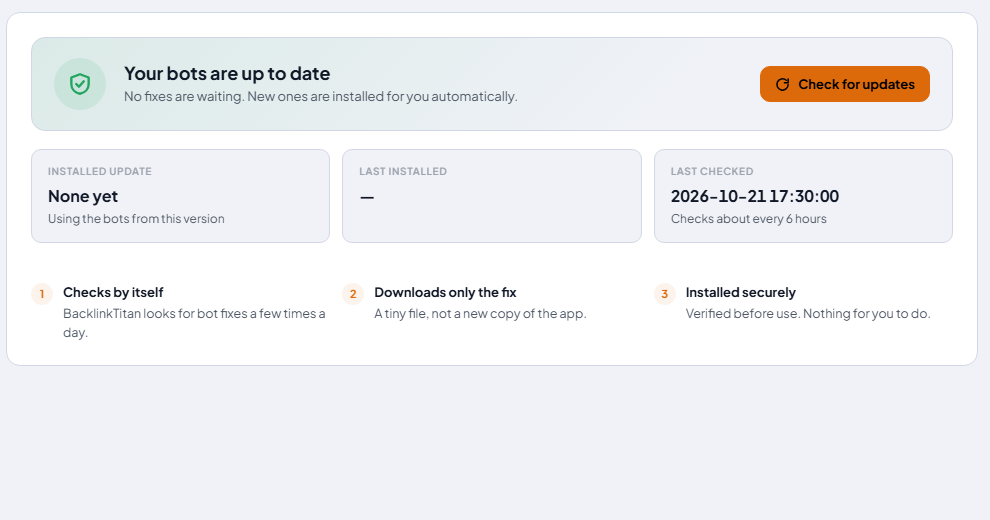
Want the fix right now instead of waiting? Open Settings → Bot Updates and click Check for updates. Updates cover the Profile and Web 2.0 bots as well as Google Stack, Site.Google, Search Console and the social media bots, and new kinds of bots can arrive the same way. The page also lists the bots that the latest update fixed or removed. A bot that has been removed simply disappears from the bot lists; campaigns that included it skip it and carry on with the others. You need an active license and an internet connection for bot updates.
Appearance
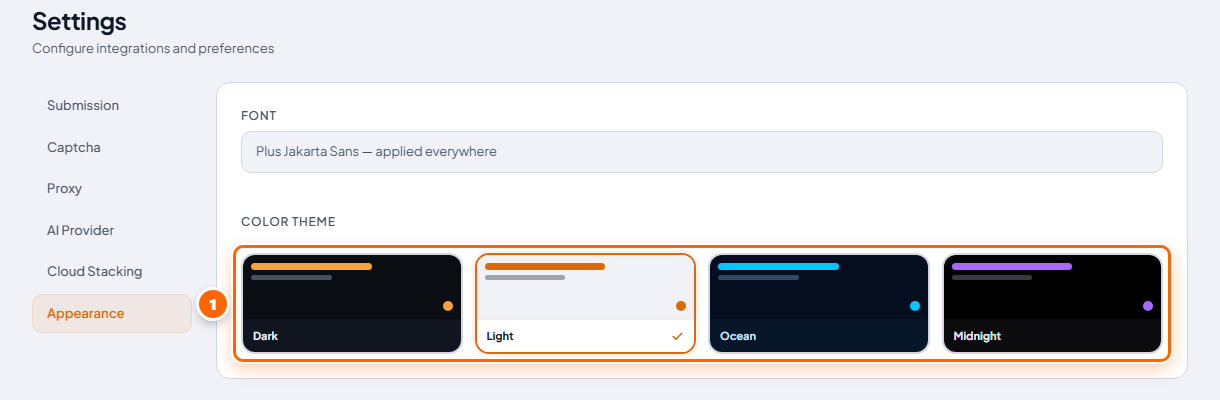
Pick a Color Theme — Dark, Light, Ocean, or Midnight. The app font (Plus Jakarta Sans) is fixed and applied everywhere.
Proxies
Route bot traffic through your own proxy pool
Proxies are optional but recommended for high-volume profile campaigns to avoid IP-based rate limits. BacklinkTitan reads proxies from a plain text file you specify in Settings.
Proxy File Format
One proxy per line, in this exact format:
10.0.0.5:3128:myuser:mypass
proxy.example.com:1080:user:pass
In Settings → Proxy tab, set Global Proxy File to the full path of this file (or set a campaign-specific proxy file on the Profile tab of a campaign). Then enable the Use Proxy toggle on the campaign — its bots will rotate through the list.
Captcha Solving
Automatic captcha solving via XEvil
BacklinkTitan integrates with XEvil — a self-hosted captcha solver that runs on your machine. When a bot encounters a captcha during registration, it sends it to XEvil, which solves it and returns the token automatically.
Supported Captcha Types
Setup
localhost:80 (the default).Buy XEvil
Open a support ticket from your dashboard or email us directly.
contact@backlinktitan.netTroubleshooting
Quick fixes for the most common problems
Windows SmartScreen blocks the Setup file
Click More info → Run anyway. The warning appears because BacklinkTitan is not yet a signed publisher.
Setup stops or shows [ERROR] lines
Check your internet connection, temporarily allow the Setup file in your antivirus, and run Setup again. It is safe to re-run: it checks everything and repairs what is missing. If it keeps failing, send support the install log (see below).
Bots don't start or fail right after installing
Re-run Setup so it can verify and repair what the bots need, then restart BacklinkTitan.
The sidebar shows "Can't verify license — Connection issue"
BacklinkTitan could not reach the license server at that moment and is retrying automatically. Check your internet, VPN or antivirus web protection. It clears by itself when the connection is back.
AI shows "not configured" or the AI Provider checklist item is not Ready
Open Settings → AI Provider. For Ollama, make sure the Ollama app is running and signed in, click Refresh, then select your model. For OpenAI, Claude or Gemini, check the API key and use Test Connection.
AI SEO doesn't run on schedule
AI SEO runs from inside the app, so BacklinkTitan must be open. Also check the target isn't Paused (use Resume) and that your AI provider is Ready.
The window is too big or too small
BacklinkTitan opens full screen on purpose. Use the restore button at the top-right of the window to resize it however you like.
You moved BacklinkTitan to a new PC
A license works on one PC at a time. Email contact@backlinktitan.net with your license key and we will reset it so you can activate on the new machine.
%APPDATA%\BacklinkTitan and press Enter (the folder is hidden, but typing the path opens it), then attach install_log.txt.